Export Contacts to Excel & CSV: Export iPhone Contacts
Use Export Contacts to Excel & CSV to export iPhone contacts to Excel, CSV, PDF, or vCard and create a private, useful address book backup.
 Export Contacts to Excel & CSV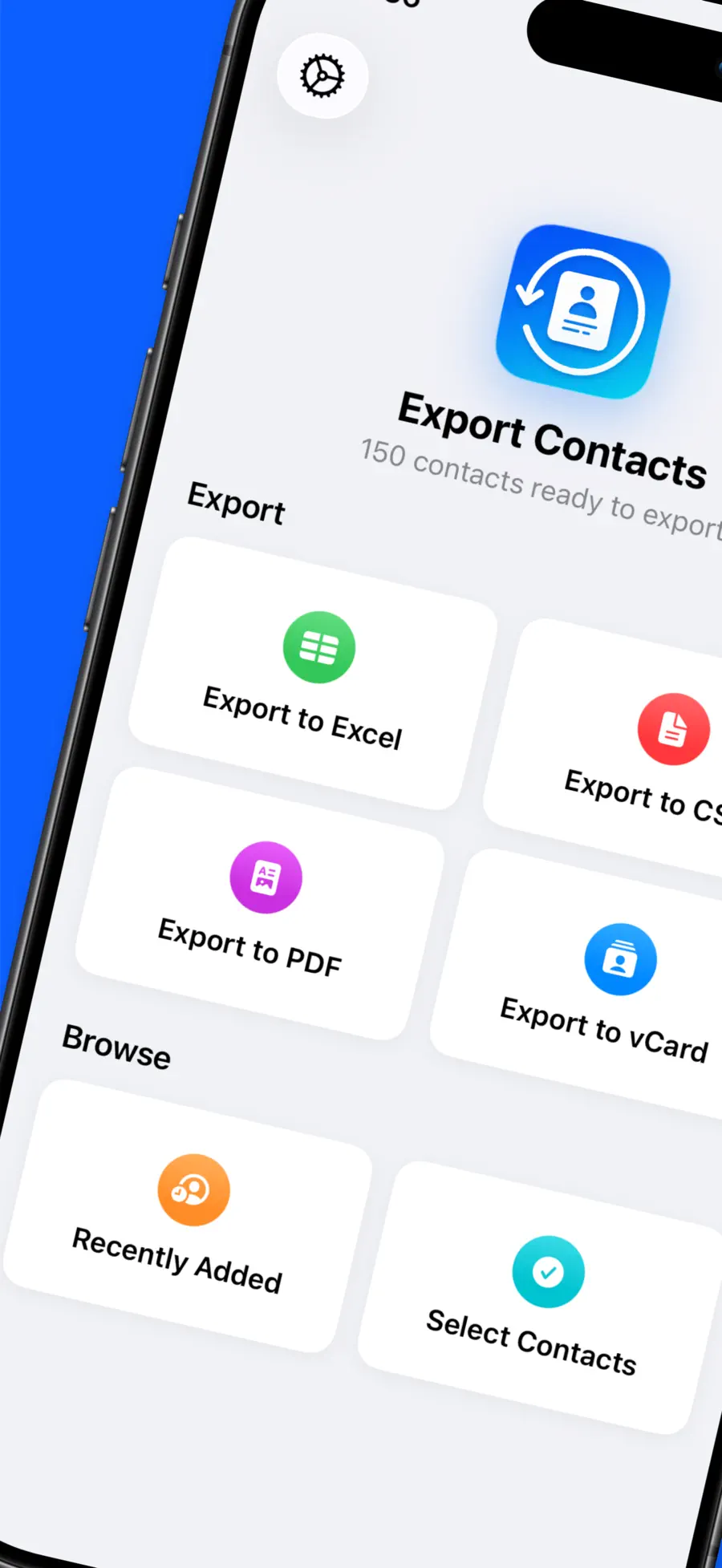

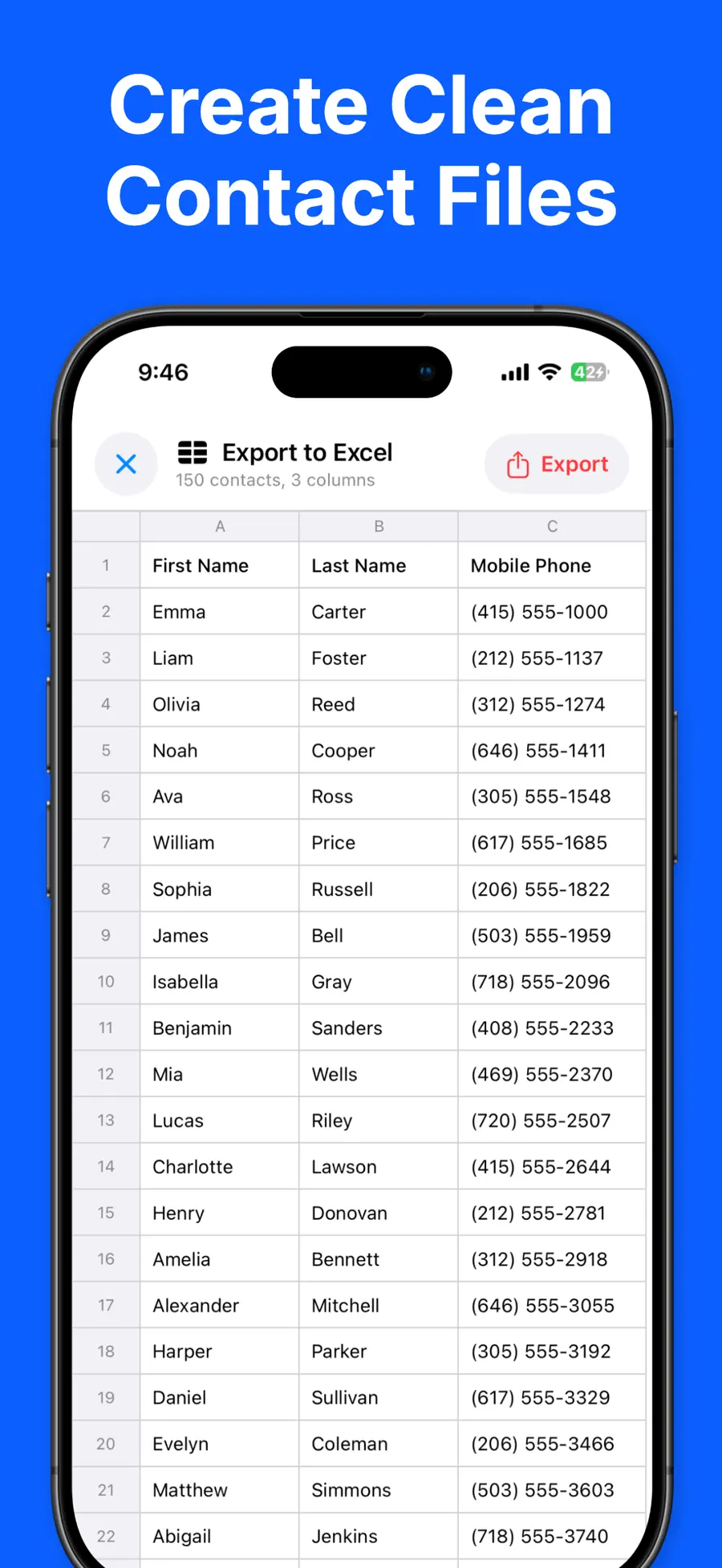


Your iPhone address book may contain years of customer numbers, family details, school contacts, and people you cannot easily replace. Yet that information becomes difficult to use when you need a spreadsheet, a printable list, or a file you control.
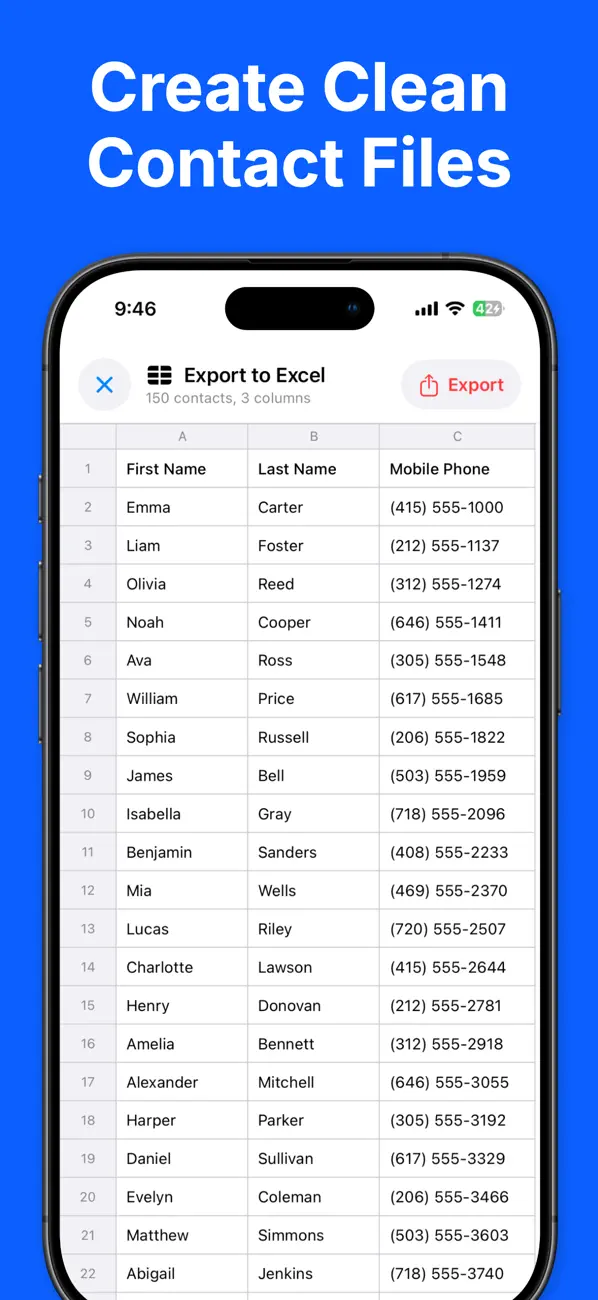
Export Contacts to Excel & CSV turns those contacts into Excel, CSV, PDF, or vCard files directly on your iPhone. The app processes the export on the device, so your address book is not uploaded to a server. Here is how to choose the right format and make a useful backup in a few taps.
Choose the right contact export format
The best format depends on what you want to do after exporting. One file does not fit every workflow.
| Format | Best for | Why choose it |
|---|---|---|
| Excel (XLSX) | Sorting, filtering, and editing | Opens as a structured spreadsheet in Excel |
| CSV | Google Sheets, databases, and mailing tools | Widely compatible and easy to import |
| vCard (VCF) | Moving contacts to another phone or contacts app | Designed for contact transfer and import |
| Printing or sharing a readable contact sheet | Keeps a clean, fixed layout |
Choose Excel when people need to work with rows and columns. Choose CSV when another service asks for an import file. Use vCard for a phone migration, and PDF when the recipient should read or print the list rather than edit it.
Export iPhone contacts to Excel or CSV
You can create the first file in a few minutes:
- Download Export Contacts to Excel & CSV from the App Store.
- Open the app and allow contact access. The permission is needed to read the entries you ask the app to export.
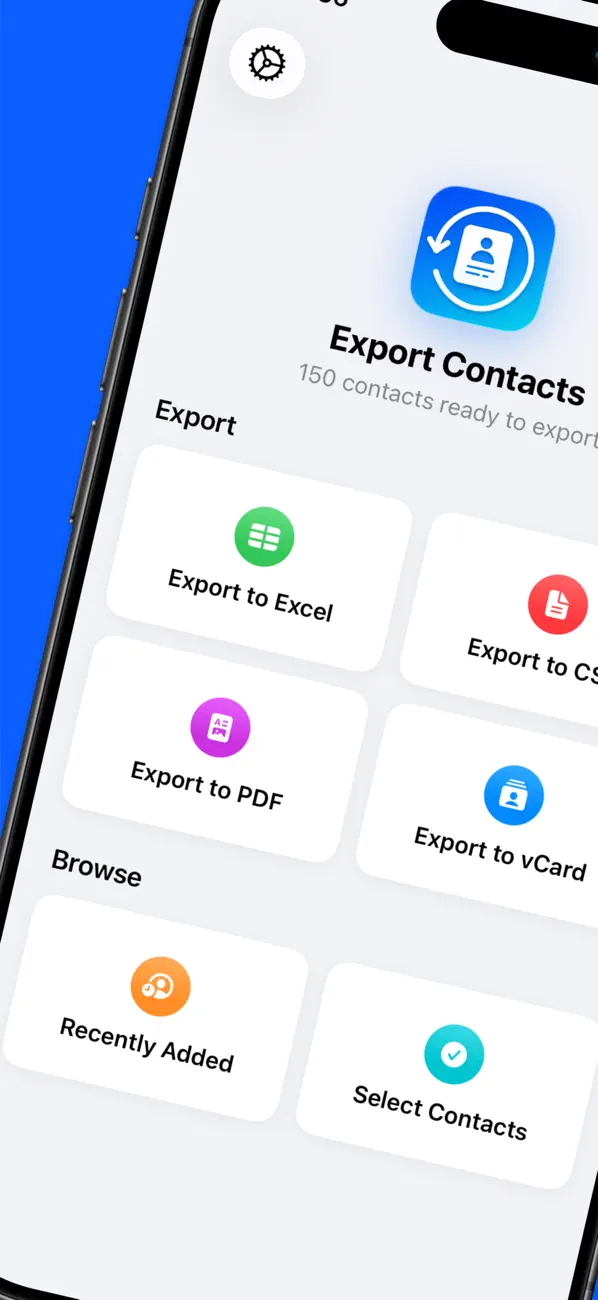
- Select Excel, CSV, PDF, or vCard as the output format.
- Review the export options. Pro lets you choose the columns and put them in the order your workflow needs.
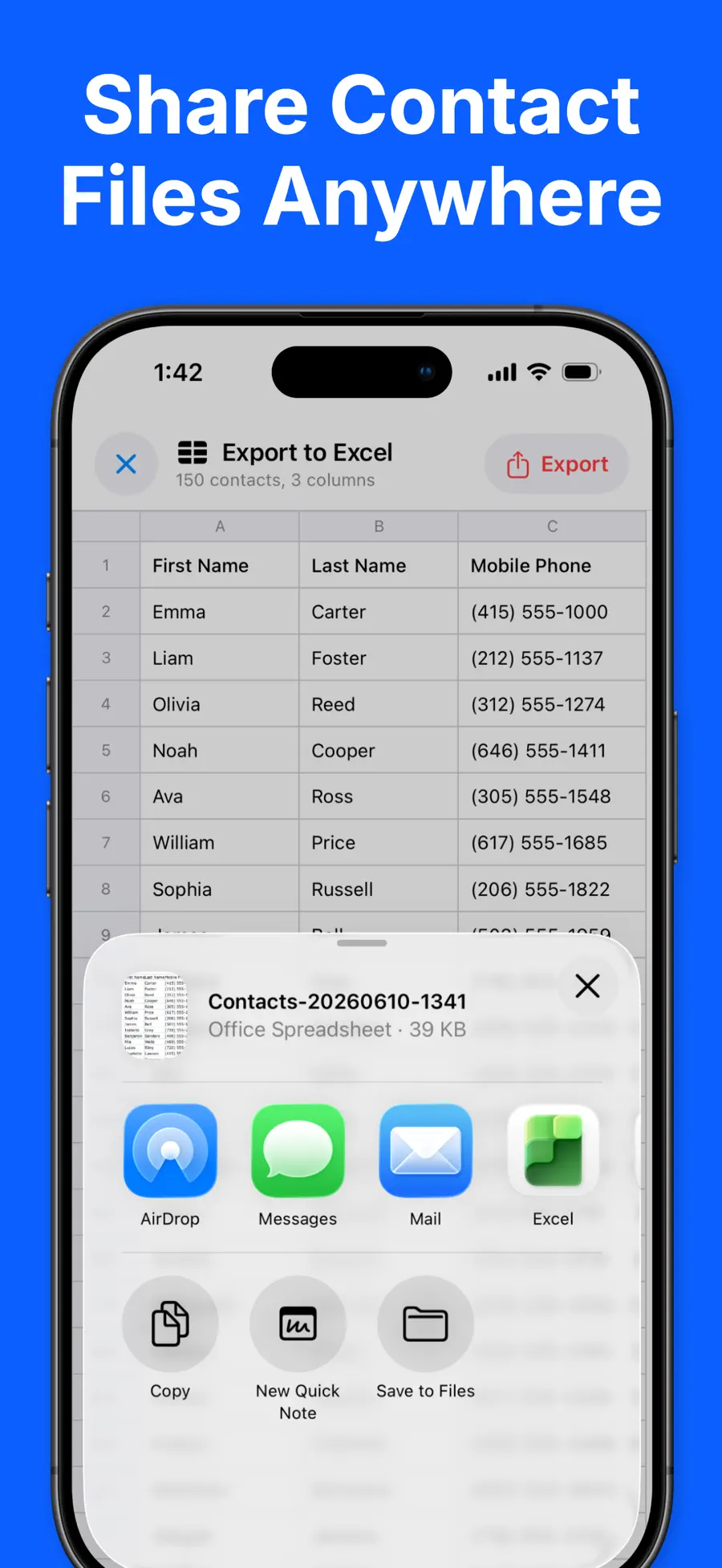
- Create the file, then use the iPhone share sheet to send it to Files, Mail, AirDrop, iCloud Drive, Slack, Dropbox, or another destination you choose.
- Open the exported file and check a few rows before treating it as your backup or importing it elsewhere.
For a spreadsheet, check names containing accents, phone numbers with country codes, and contacts with more than one email address. This quick review can catch formatting differences before you share or import hundreds of rows.
Keep the address book private while exporting
Contacts are unusually sensitive. A single address book can reveal names, private phone numbers, email addresses, workplaces, home addresses, and personal notes. Uploading all of it to an unknown conversion website creates unnecessary exposure.
Export Contacts to Excel & CSV creates the file on your iPhone. According to its App Store listing, contacts never leave the device for processing and are not uploaded to a server. You decide where the finished file goes through the system share sheet.
The exported file is still valuable data, so protect it after creation. Save it in a trusted location, send it only to the intended recipient, and remove temporary copies from shared devices. For more context, read why on-device processing matters.
Four practical ways to use the export
Create a contact backup you can inspect
A vCard is useful for restoring contacts, while an Excel or CSV copy lets you inspect the data without importing it first. Add the export date to the filename, such as contacts-2026-08-07.xlsx, so the newest copy is easy to identify.
Move contacts to a new phone
Export a vCard when the destination accepts VCF files. Keep the old phone unchanged until you confirm that names, numbers, and email addresses arrived correctly on the new device.
Build a clean work or event list
Export to Excel or CSV, keep only the columns needed for the task, and remove people who should not be included. Always obtain the appropriate consent before using contact details for marketing or bulk messages.
Print an emergency or family directory
PDF is a convenient choice when a school, caregiver, office, or family member needs a readable list. Review the file carefully and avoid including private fields the recipient does not need.
Free export or Pro: which one do you need?
The free version can export up to 50 contacts at a time and includes Excel, CSV, PDF, and vCard. It is a practical way to test each format or create a small list.
Pro removes the 50-contact limit, exports the full address book, and lets you select and reorder columns. It is offered as a one-time purchase rather than a subscription. If you have a large address book or need a repeatable spreadsheet layout, those controls can save cleanup time after every export.
Make your first private contact export
The right contact export should be easy to create, simple to verify, and useful in the app or service that receives it. Export Contacts to Excel & CSV covers the four formats most people need while keeping the conversion on the iPhone.
Download Export Contacts to Excel & CSV on the App Store, export a small test file, and open it before creating your full backup. You can also review the complete app details.
Get Export Contacts to Excel & CSV
Use Export Contacts to Excel & CSV to export iPhone contacts to Excel, CSV, PDF, or vCard and create a private, useful address book backup.
4.4 · 7



 LoroNote - Speech to Text
 Local TTS - AI Voice Reader