Export Contacts to Excel & CSV vs Contacts Backup
Compare Export Contacts vs Contacts Backup + Transfer for file formats, local processing, restore, cloud backup, free limits, and pricing.
 Export Contacts to Excel & CSV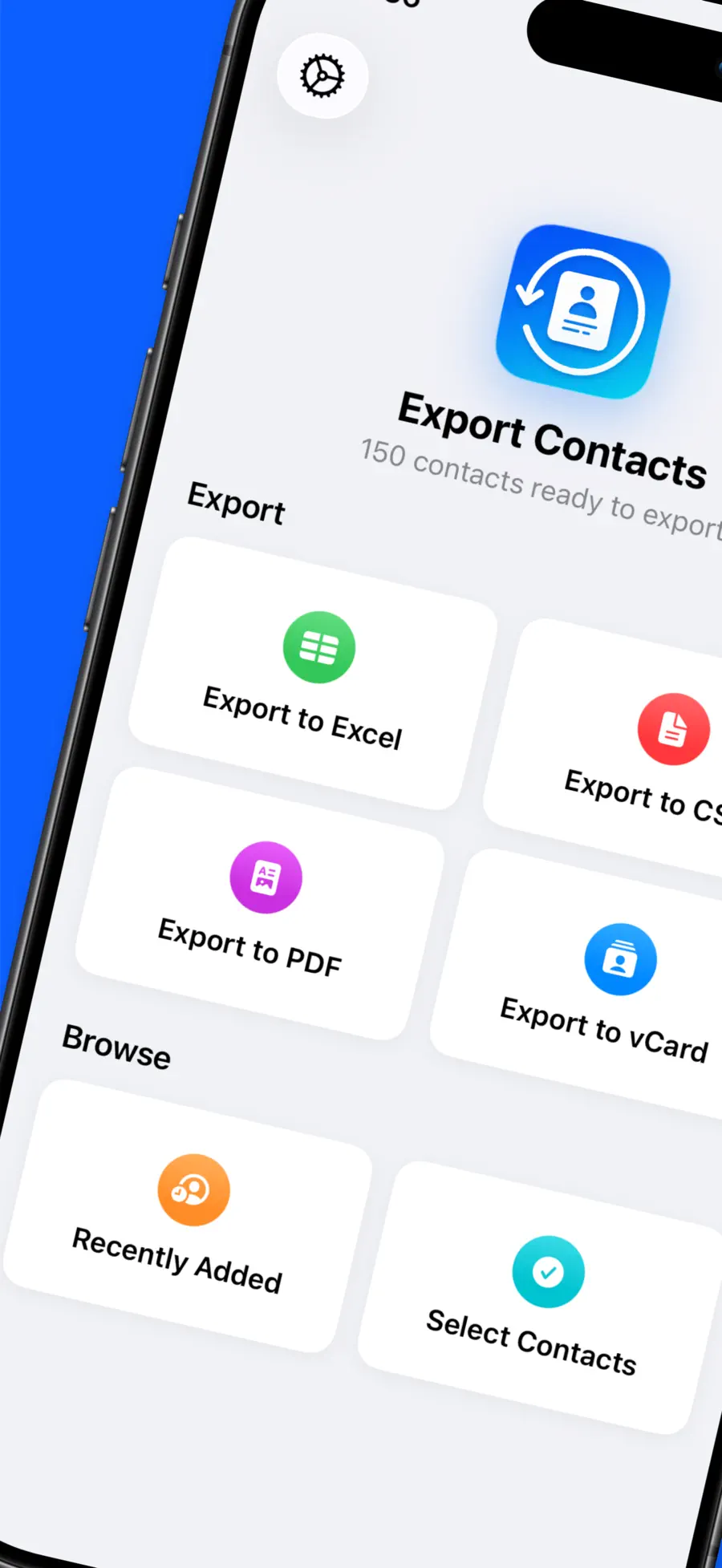

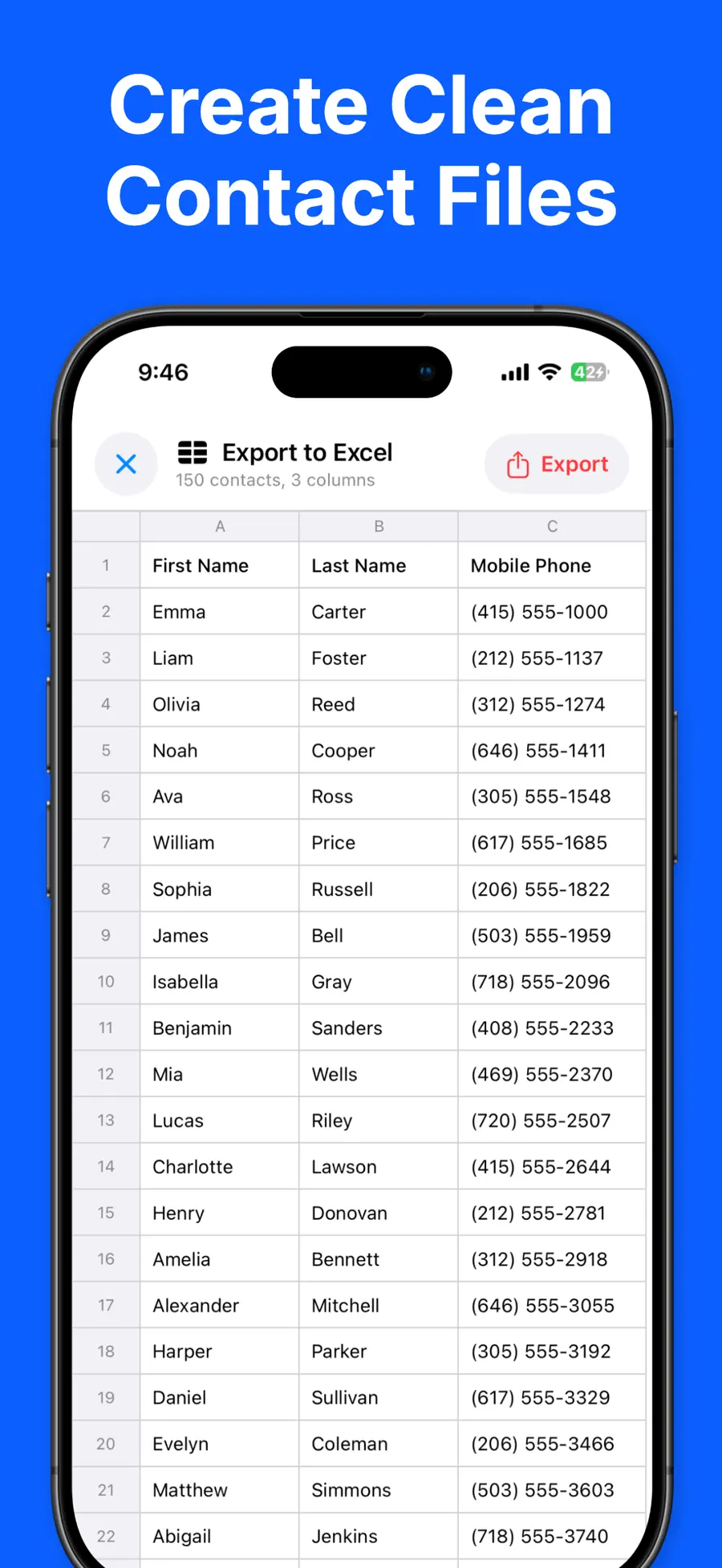

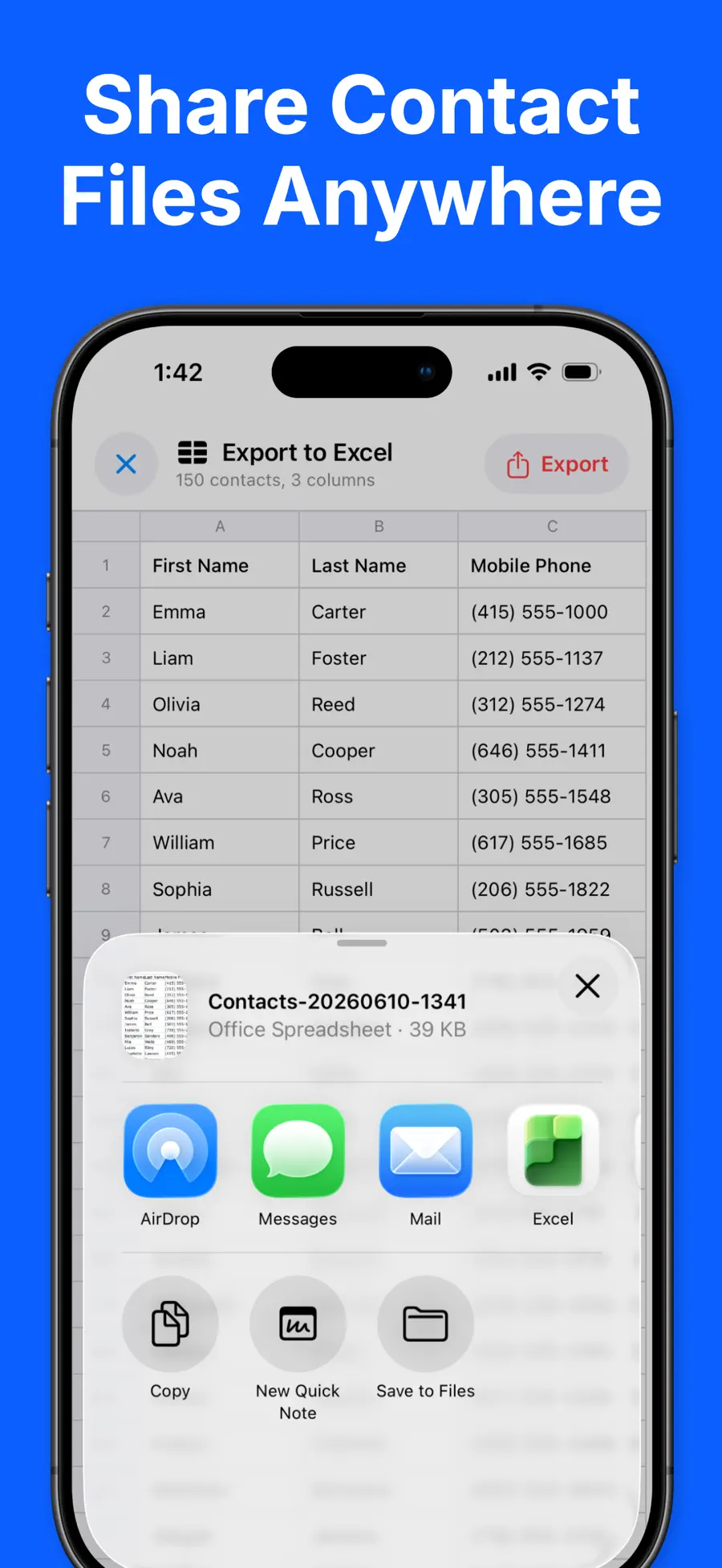

Table of contents+
- Export Contacts vs Contacts Backup at a glance
- Choose the result before choosing the app
- Choose Export Contacts for files you can use
- Choose Contacts Backup + Transfer for recovery automation
- Local export and cloud backup solve different privacy problems
- A safer contact-backup checklist
- Which contact app should you choose?
- Frequently asked questions
- Create and verify one small backup first
These apps overlap, but they start with different jobs. Export Contacts to Excel & CSV treats the address book as data you may need in a spreadsheet, printable document, or portable contact file. Contacts Backup + Transfer treats it primarily as something to preserve and restore.
This first-party comparison from Rich Soft is based on the two US App Store listings verified on August 12, 2026. Features, in-app purchases, and regional prices may change, so confirm the current listings before choosing.
Export Contacts vs Contacts Backup at a glance
The right app depends on the result you need after tapping the main button. “Backup” and “export” are related, but they are not identical.
| Comparison | Export Contacts to Excel & CSV | Contacts Backup + Transfer |
|---|---|---|
| Primary purpose | Turn contacts into files for spreadsheets, sharing, printing, backup, or migration | Create contact backups, share them, access previous backups, and restore contacts |
| Published formats | Excel (XLSX), CSV, PDF, and vCard (VCF) | The listing emphasizes contact backup files and restore rather than spreadsheet or PDF output |
| Processing model | Export is processed on the iPhone; the listing says contacts are not uploaded to a Rich Soft server | Core backup and sharing are available; Pro adds automatic backup and encrypted cloud storage |
| Free use | Export up to 50 contacts at a time in all four formats | The listing describes complete backups, sharing through Messages, Mail, or AirDrop, and access to previous backups as free features |
| Paid model | One-time Pro purchase removes the 50-contact limit and adds column selection and ordering | Contacts Backup Pro is presented as an auto-renewing monthly subscription |
| Restore workflow | Export a vCard that compatible contact apps can import | Restore previous backups within the product workflow |
| Best fit | Excel and Google Sheets work, custom columns, mailing lists, printed directories, and user-controlled files | Ongoing automatic backup, restore, and provider-managed encrypted cloud storage |
Choose the result before choosing the app
Start with the final destination:
- Excel: choose XLSX when you want formatted rows and columns in Microsoft Excel.
- Google Sheets or a database: choose CSV for broad import compatibility.
- Another phone or contacts app: choose vCard because it is designed to carry contact records.
- A printed or read-only directory: choose PDF for a stable page layout.
- Recovery after loss or deletion: choose a workflow that clearly supports restore and keeps an accessible backup history.
If the task is “put my customers into a spreadsheet,” a restore-focused backup is not enough. If the task is “recover my address book after a device problem,” an automatic backup history may matter more than column controls.
The complete iPhone contact export guide explains when to use each file format.
Choose Export Contacts for files you can use
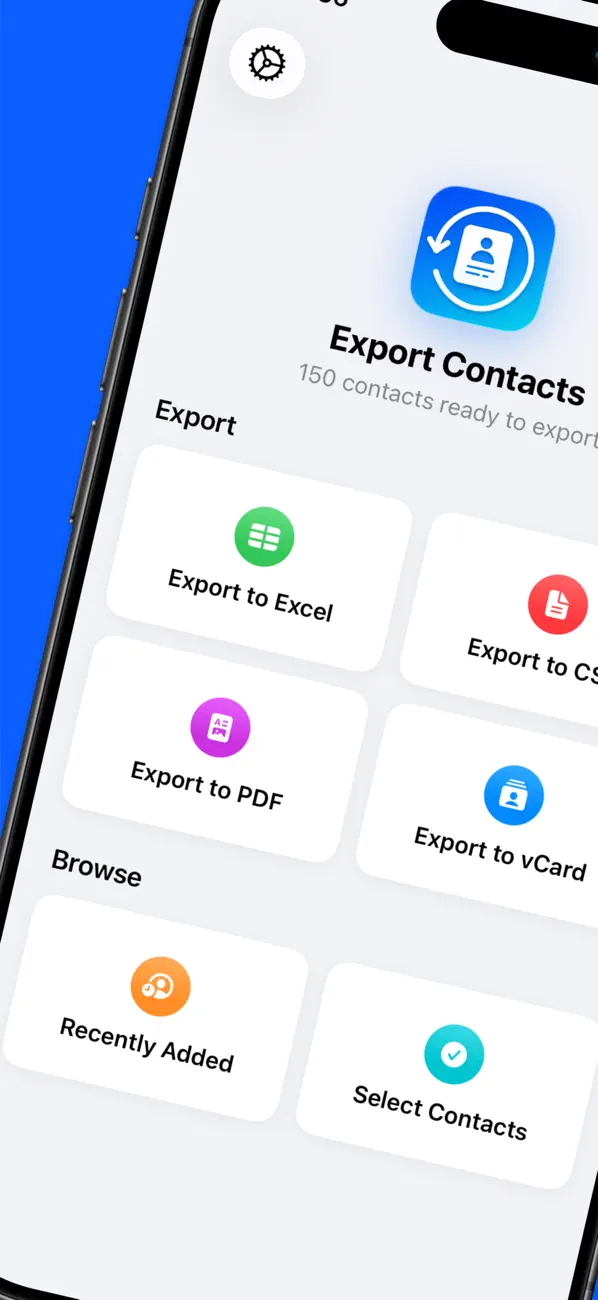
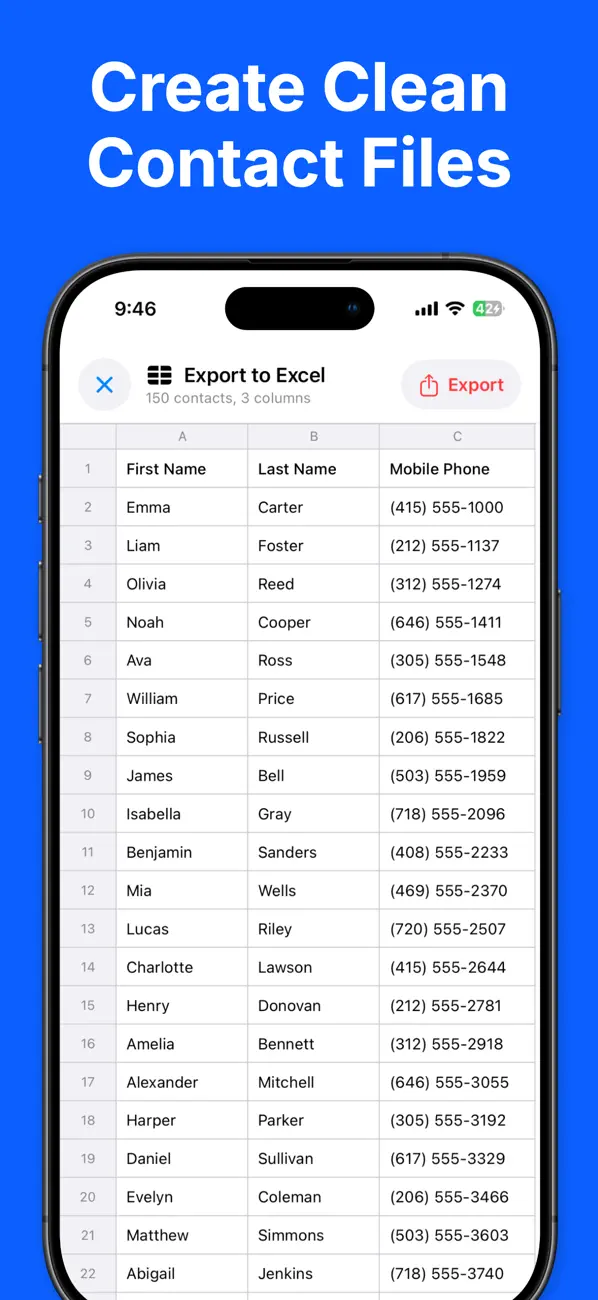
Export Contacts to Excel & CSV creates Excel, CSV, PDF, and vCard files directly on your iPhone. The first three make address-book data useful outside a contacts app:
- Sort a customer or supplier list in Excel
- Import selected fields into Google Sheets or another system with CSV
- Print an emergency, school, office, or family directory as PDF
- Move contacts through a standard vCard file
The free version exports up to 50 contacts at a time and includes all four formats. Pro removes that contact limit and lets you choose and reorder columns. That is particularly useful when a spreadsheet needs only names, companies, phone numbers, and email addresses rather than every field stored in Contacts.
The Pro upgrade is a one-time purchase rather than a subscription. For a periodic manual export, this makes the ongoing cost predictable.
Choose Contacts Backup + Transfer for recovery automation
Contacts Backup + Transfer emphasizes creating backups, sharing them through Messages, Mail, or AirDrop, accessing previous backups, and restoring contacts. Those are direct recovery features rather than spreadsheet tools.
Its Pro service adds:
- Automatic contact backups
- Secure cloud storage managed through the service
- AES-256 encryption as stated in the App Store listing
That model fits someone who would otherwise forget to create a fresh manual copy. It also places more of the recovery workflow inside one product.
The trade-off is an ongoing subscription and an optional provider-managed cloud path. Cloud storage is not automatically unsafe; it changes who stores the backup and what account, retention, and recovery controls need review. Read the current privacy label and policy before placing an address book in any cloud service.
Local export and cloud backup solve different privacy problems
Export Contacts to Excel & CSV says the address book remains on the device while the file is created. Afterward, you choose where the finished file goes through the iPhone share sheet. Rich Soft does not need to receive the contacts to perform the conversion.
This gives you direct control, but it also gives you responsibility. A contacts spreadsheet saved to an unprotected shared folder can be exposed even though the conversion itself was local.
Contacts Backup + Transfer offers an encrypted cloud option for automation and remote availability. That can improve recovery, but the backup necessarily needs to be stored with the service when that option is enabled. Evaluate authentication, account recovery, deletion, and subscription behavior—not only the word “encrypted.”
For more context about the processing step, read why on-device processing matters.
A safer contact-backup checklist
Whichever app you choose, verify the result instead of trusting a successful animation:
- Check the number of contacts in the source address book.
- Create the export or backup.
- Confirm that the resulting contact count is plausible.
- Inspect entries with several phone numbers, email addresses, notes, accents, or non-Latin names.
- Confirm that the file or backup can be opened from its intended recovery location.
- Keep an older known-good copy before replacing it with a new one.
- Protect exported files as carefully as the phone itself.
Do not test restoration by deleting the only copy of a real contact. Use a disposable sample contact or a secondary test environment when possible.
Which contact app should you choose?
Choose Export Contacts to Excel & CSV if you want to:
- Export contacts to Excel, CSV, PDF, or vCard
- Use address-book data in Excel or Google Sheets
- Select and reorder exported columns with Pro
- Keep conversion on the iPhone
- Pay once for the complete export feature set
Choose Contacts Backup + Transfer if you want to:
- Restore from previous backups inside a backup-focused workflow
- Automate future contact backups
- Use its optional encrypted cloud storage
- Prefer a subscription service that manages recurring backups
The simplest distinction is usable files versus automated recovery. Export Contacts to Excel & CSV is the stronger fit for file formats and spreadsheet control; Contacts Backup + Transfer is the stronger fit for restore and automatic cloud backup.
Frequently asked questions
Which app exports contacts to Excel or CSV?
Export Contacts to Excel & CSV explicitly supports Excel (XLSX) and CSV, along with PDF and vCard. The Contacts Backup + Transfer listing emphasizes backup and restore rather than spreadsheet export.
Do my contacts leave the iPhone with Export Contacts?
The Export Contacts to Excel & CSV listing says conversion happens on the device and contacts are not uploaded to a Rich Soft server. The completed file only moves when you save or share it to a destination you choose.
Which app has automatic backups?
Contacts Backup + Transfer lists automatic backup as a Pro subscription feature. Export Contacts to Excel & CSV is designed around user-initiated file exports.
Can I restore contacts from an exported vCard?
Compatible contact apps and operating systems can import vCard files. Always verify the file before relying on it as the only recovery copy.
Which app uses a one-time purchase?
Export Contacts to Excel & CSV offers Pro as a one-time purchase. Contacts Backup + Transfer advertises its cloud-enabled Pro service as an auto-renewing subscription. Check the current regional price and terms in the App Store.
Create and verify one small backup first
Start with a small export or sample contact, open the result, and confirm that the fields you care about survive the process. Then create the full copy and store it somewhere you can recover without the original phone.
Review the current Export Contacts to Excel & CSV features and official screenshots, or open Export Contacts to Excel & CSV on the US App Store.
Get Export Contacts to Excel & CSV
Compare Export Contacts vs Contacts Backup + Transfer for file formats, local processing, restore, cloud backup, free limits, and pricing.
4.2 · 5



 LoroNote - Speech to Text
 Local TTS - AI Voice Reader