Countdown Pro - Widget & Timer: iPhone Widget Guide
Add Countdown Pro to your iPhone Home or Lock Screen, sync dates across iPhone, iPad, and Mac with iCloud, and fix common widget problems.
 Countdown Pro - Widget & Timer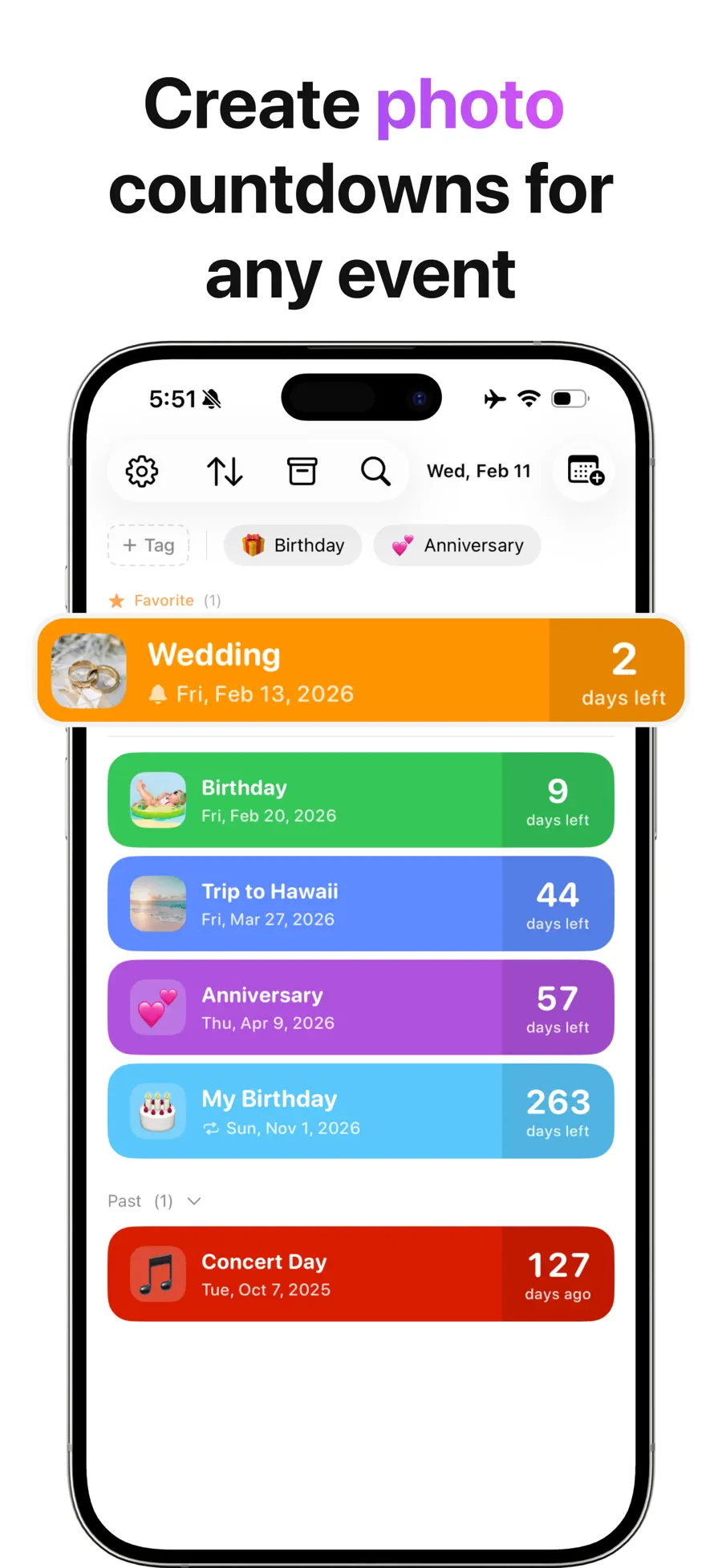
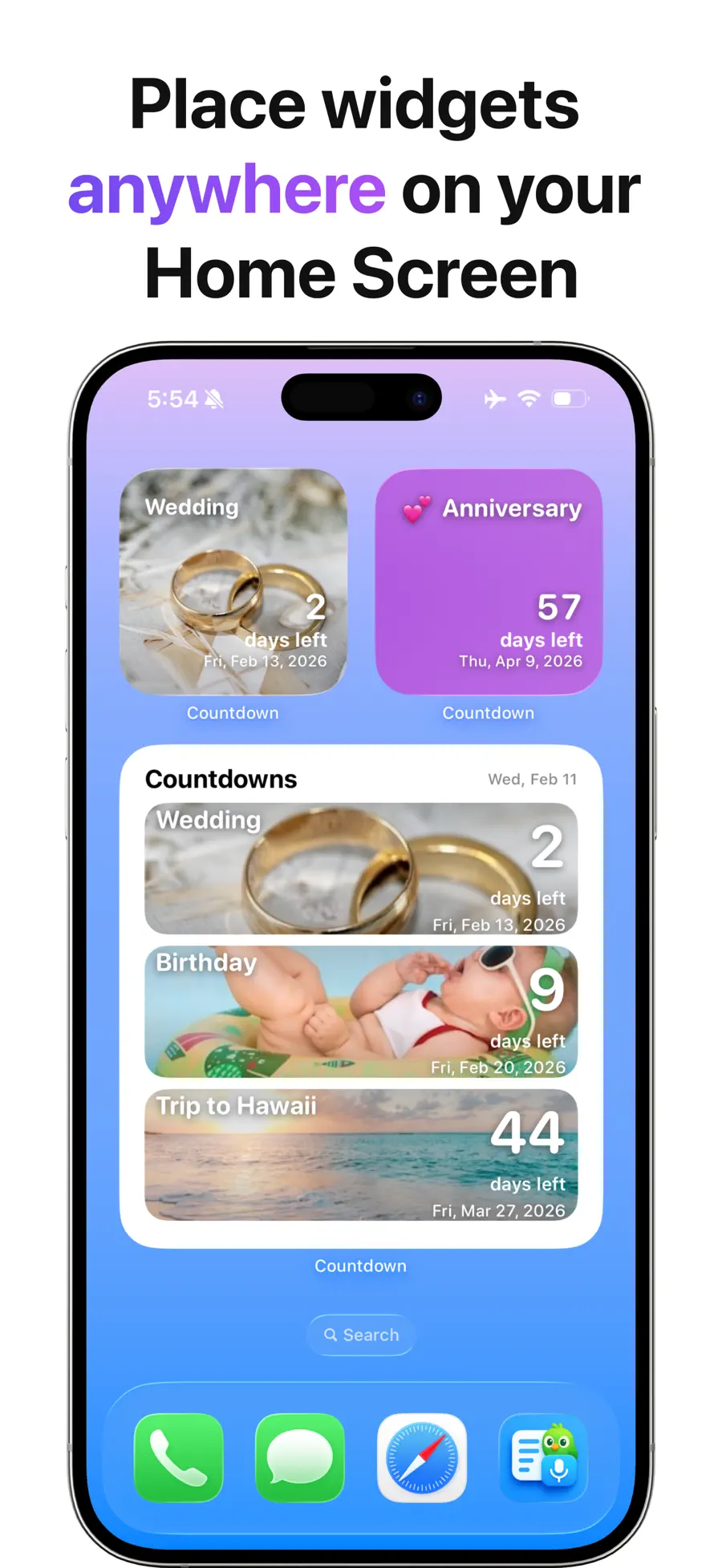
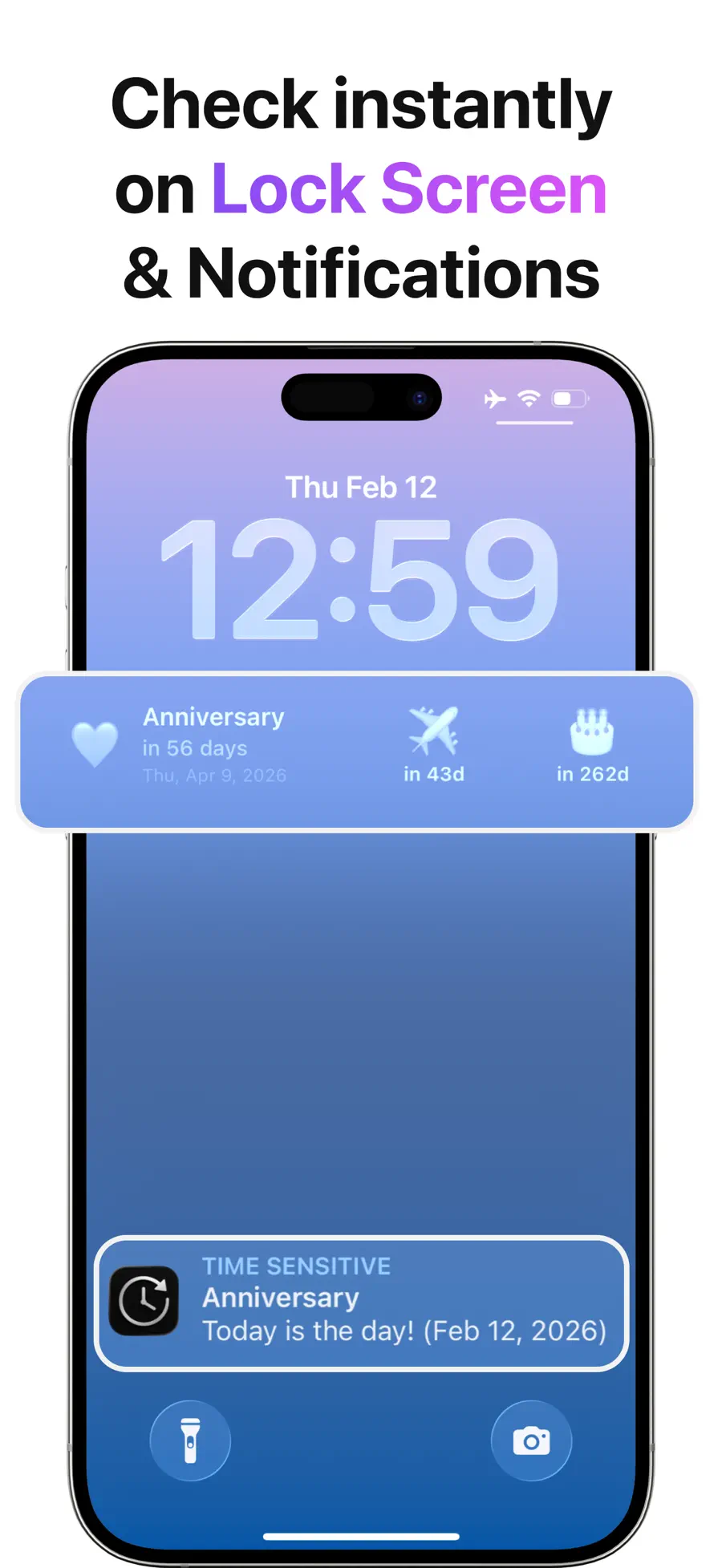
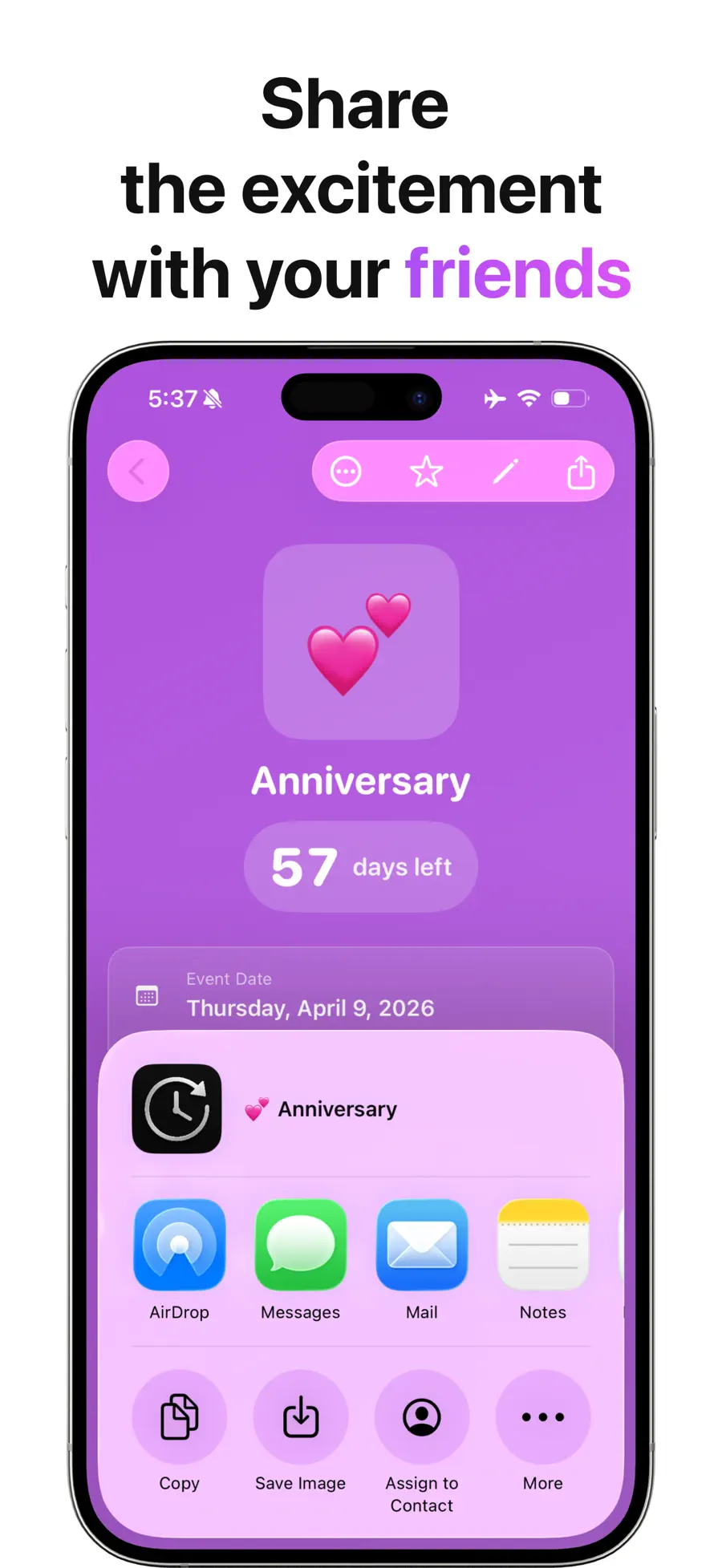

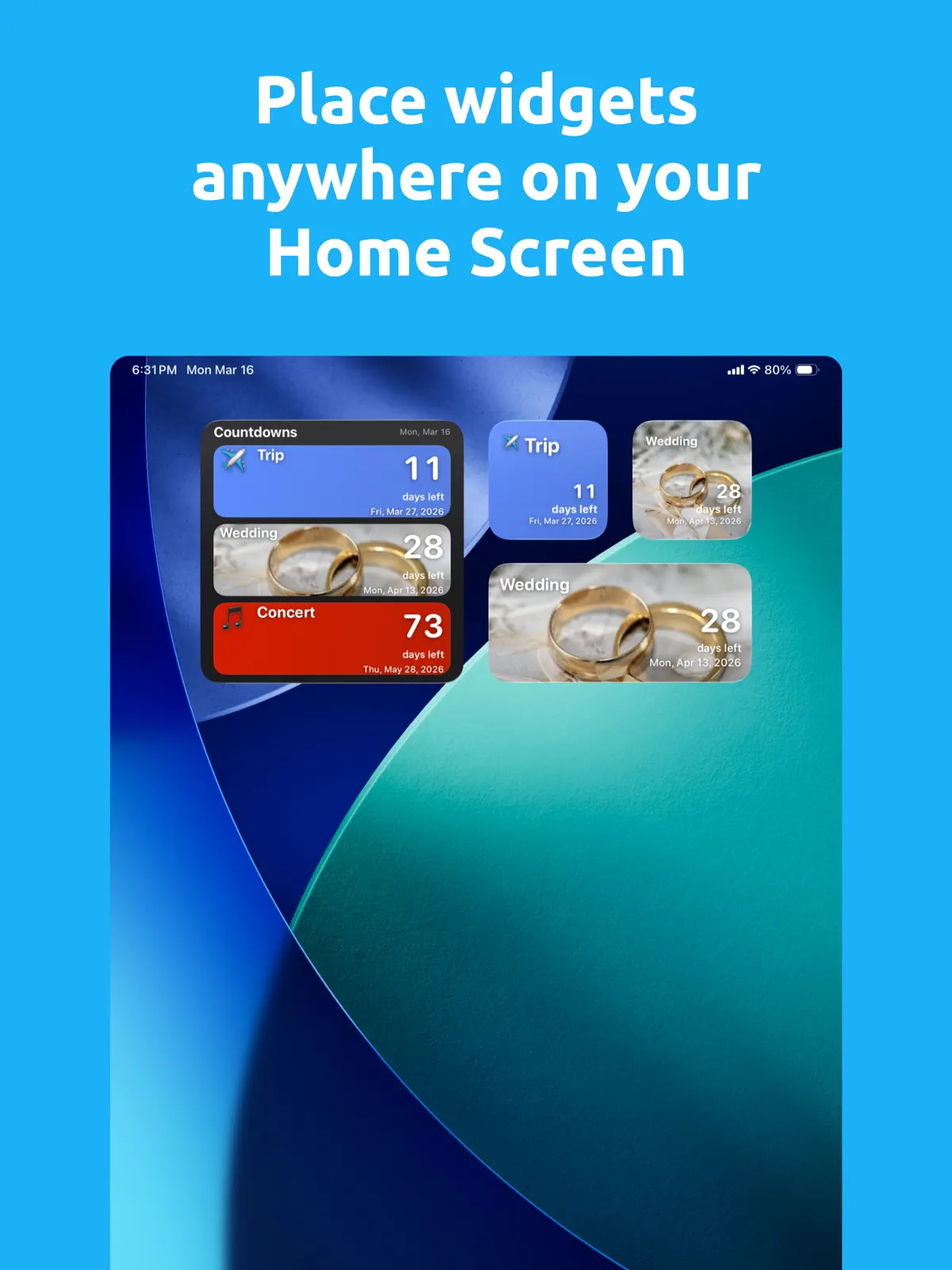
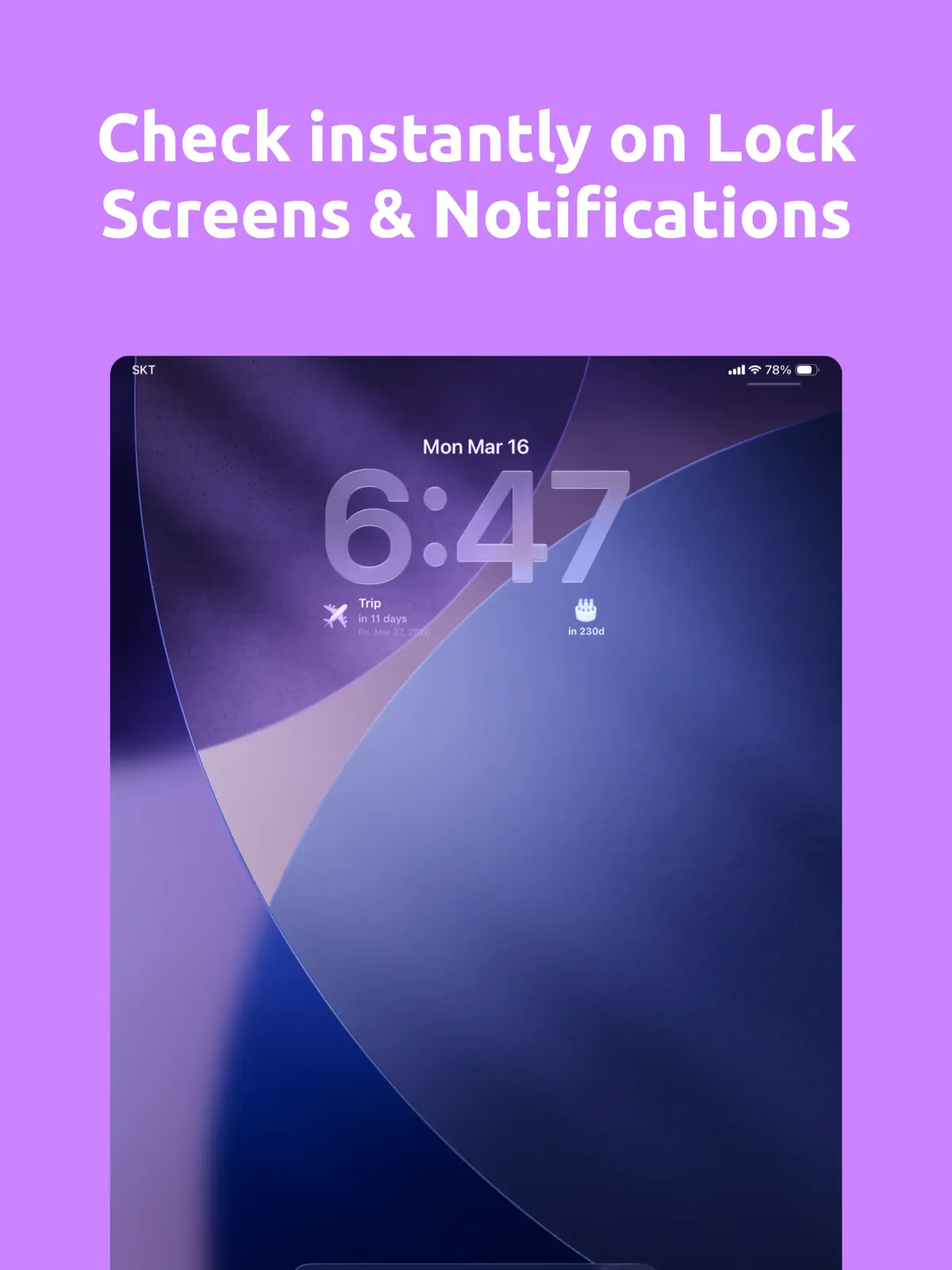
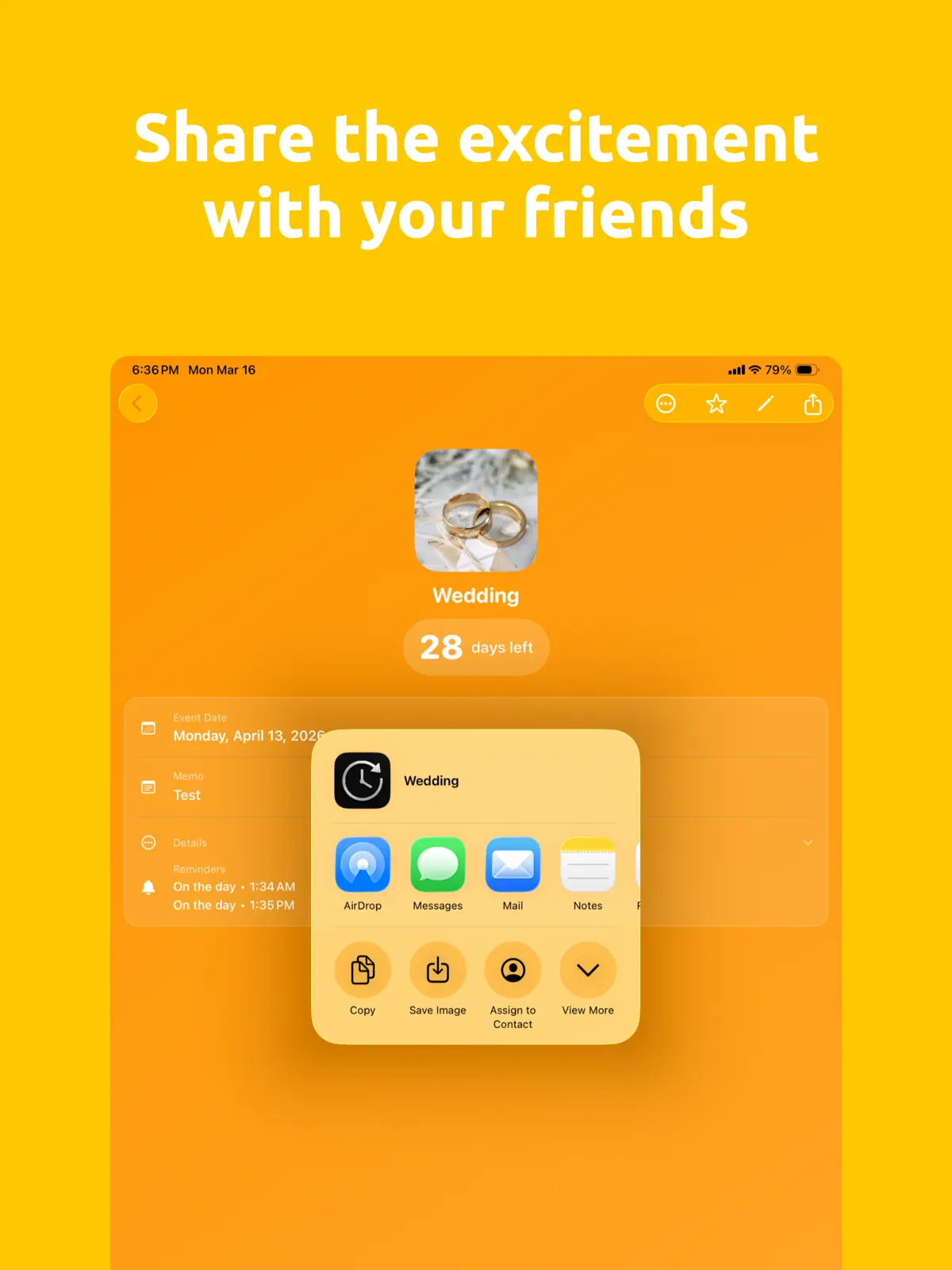

Table of contents+
- How to add a countdown widget to your iPhone
- How to put a countdown on the Lock Screen
- What is free and what requires Pro?
- Which events work well in a countdown widget?
- What to check if the widget does not appear
- Is Countdown Pro - Widget & Timer right for you?
- Frequently asked questions
- Put one important date where you can see it
This guide covers the complete setup, iCloud sync, which features are free, and what to check when the countdown does not appear. We verified it against version 2.9.2 and the US App Store listing on August 13, 2026.
How to add a countdown widget to your iPhone
Create the event before adding the widget. This gives the widget something useful to display as soon as it appears.
- Install and open Countdown Pro - Widget & Timer.
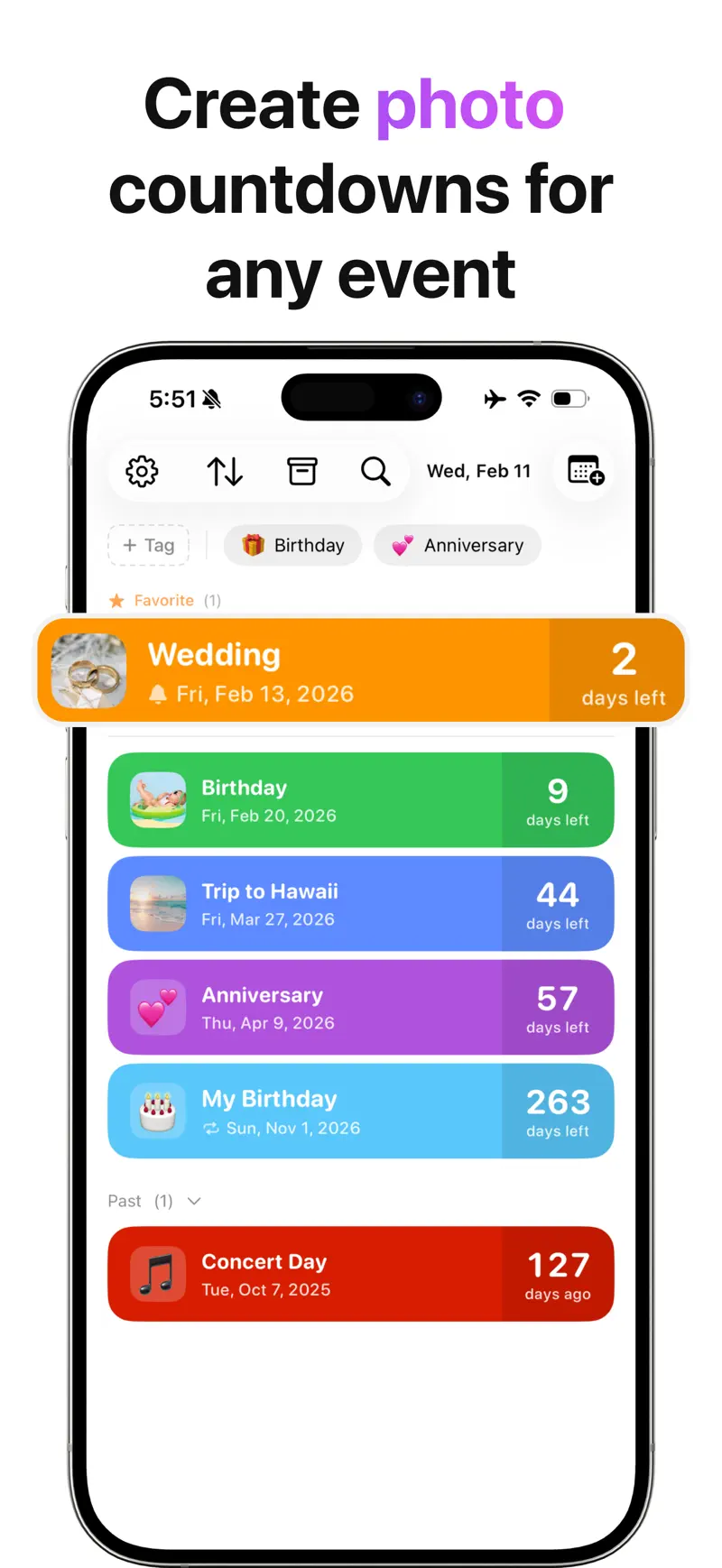
- Create an event with a title and date. A photo, emoji, and color are optional.
- Return to the Home Screen and touch and hold an empty area until the apps begin to move.
- Tap Edit, then Add Widget.
- Search for Countdown Pro - Widget & Timer.
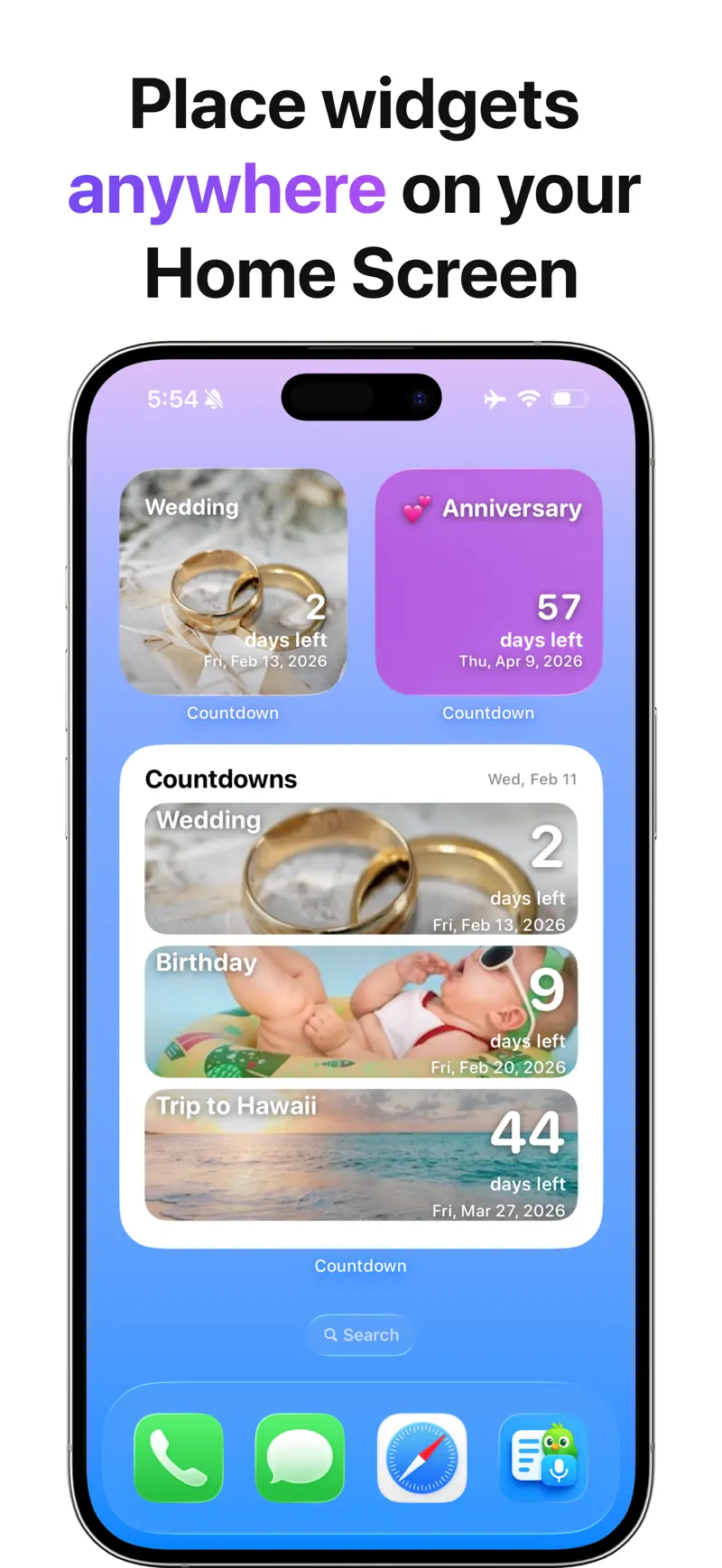
- Choose a single-event or multiple-event layout and a size, then tap Add Widget.
- Move the widget to the position you want and tap Done.
Apple keeps its general instructions current in the iPhone widget guide. Menu wording can vary slightly by iOS version.
Use a single-event widget when one date matters most, such as a wedding or flight. A multiple-event widget is better for a group of deadlines, birthdays, or upcoming trips.
How to put a countdown on the Lock Screen
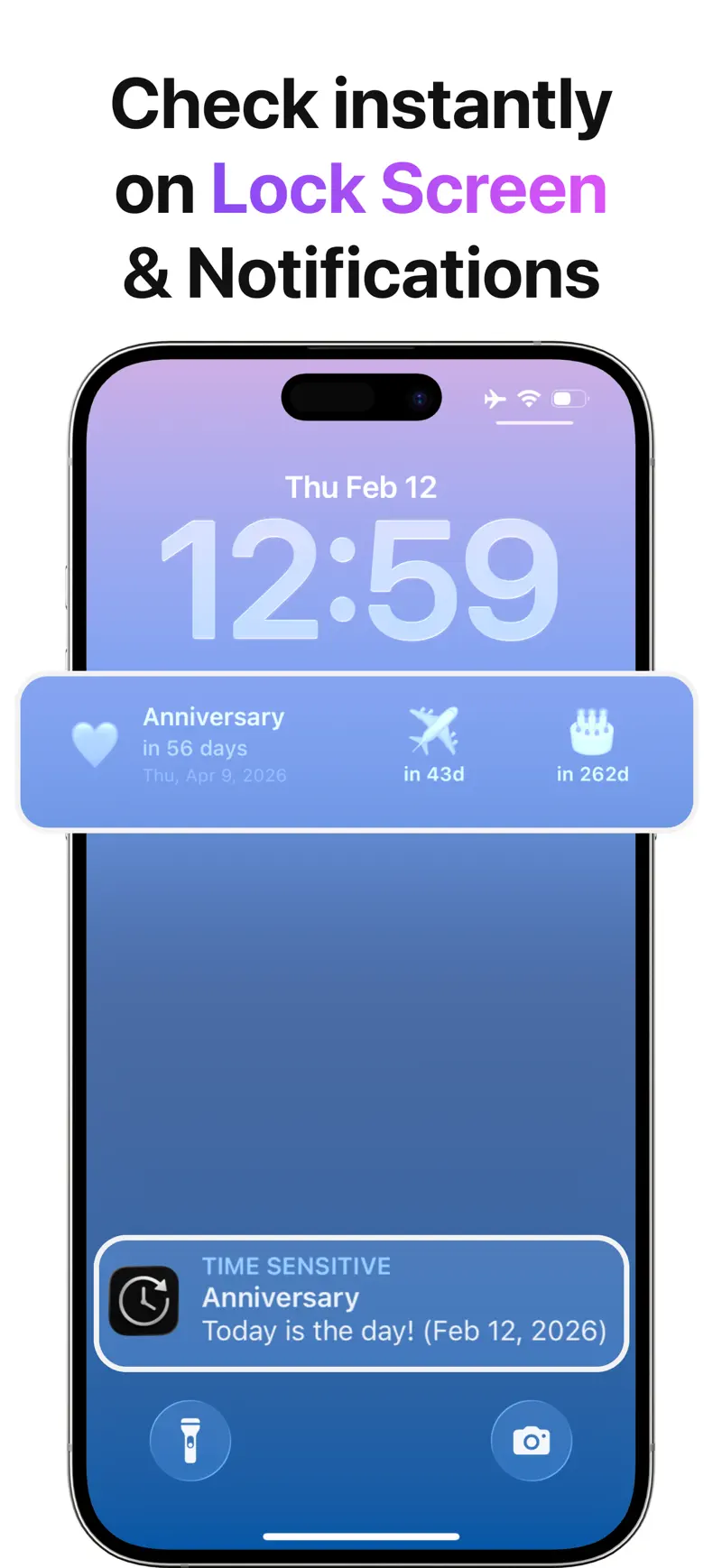
A Lock Screen countdown shows the days remaining before you open the phone.
- Touch and hold the Lock Screen, then unlock the iPhone if requested.
- Tap Customize, select the Lock Screen, and tap the widget area below the clock.
- Find Countdown Pro - Widget & Timer and add its widget.
- Finish the layout and tap Done.
Home Screen and Lock Screen widgets are both Pro features. A widget is different from a reminder: the widget stays visible, while a reminder sends a notification at a chosen time. You can use both for an important event.
What is free and what requires Pro?
The free app is useful even before you add a widget. The US App Store listing separates the features this way:
| Feature | Free | Pro |
|---|---|---|
| Unlimited upcoming and past events | Yes | Yes |
| Days-left and days-since tracking | Yes | Yes |
| Emoji, photo, color, tags, search, and grouping | Yes | Yes |
| Repeating events, reminders, and shareable cards | Yes | Yes |
| Home Screen and Lock Screen widgets | No | Yes |
| Single-event and multiple-event widgets | No | Yes |
| Detailed time, lunar dates, and event archive | No | Yes |
| Backup and restore | No | Yes, added in version 2.9.2 |
The app works offline and does not require a separate Rich Soft account. It also supports iCloud sync, which automatically keeps countdowns current across an iPhone, iPad, and Mac signed in to the same Apple Account. Pro backup and restore is a separate feature that exports countdowns to a file and creates an automatic daily backup.
Which events work well in a countdown widget?
A countdown is most useful when the distance to the date matters every day. Good examples include:
- A vacation, flight, wedding, concert, or graduation
- An exam, assignment, application, or project deadline
- A birthday or anniversary that repeats each year
- A bill, subscription renewal, or warranty expiration
- Days since a personal milestone
Calendar and Reminders still have different jobs. Calendar shows when events happen, and Reminders tracks actions you can complete. A countdown answers one narrower question: how many days are left or have passed?
What to check if the widget does not appear
Start with these checks before deleting any events:
- Open the app once. Create an event and leave the app normally before searching the widget gallery again.
- Confirm the date. If the count looks wrong, open the event and check its date, time, and repeat setting.
- Remove and add the widget again. This refreshes the widget configuration without deleting the event.
- Open the app after an update. Let the latest version load the saved events before checking the widget again.
Widgets are designed for glanceable information, so iOS controls when they refresh. Use a notification when an exact alert time matters.
Is Countdown Pro - Widget & Timer right for you?
Choose it if you want unlimited events, both days-left and days-since tracking, single- and multiple-event widgets, offline use without a separate account, and iCloud sync across iPhone, iPad, and Mac.
Our guide to why Countdown Pro - Widget & Timer stands out explores the complete feature set and the everyday situations it supports.
If you also work from a desktop, see the Countdown Pro - Widget & Timer Mac guide.
Frequently asked questions
Does iPhone have a built-in days-until widget?
The Clock app provides short-duration timers, while Calendar and Reminders show schedules and tasks. They do not provide the same dedicated, customizable days-until and days-since event view described in this guide.
Can one widget show several countdowns?
Yes. Countdown Pro - Widget & Timer lists multiple-event widgets among its Pro features. It also offers a single-event layout when you want one date to dominate the screen.
Can the app count up from a past date?
Yes. Days-since tracking keeps a past milestone visible instead of removing it when the date passes.
Does the app require an account or internet connection?
No. The current US App Store description says the app works offline and requires no account.
Do countdowns sync between iPhone, iPad, and Mac?
Yes. iCloud automatically syncs countdowns between devices signed in to the same Apple Account. This does not require a separate Rich Soft login. Pro file backup and restore is a different feature for keeping and recovering a separate copy.
Put one important date where you can see it
Start with one event rather than filling the screen. Create the date, add the layout that answers your question at a glance, and pair it with a reminder only when you need an exact alert.
Review the current features and official screenshots for Countdown Pro - Widget & Timer, or open its US App Store listing to install it.
Get Countdown Pro - Widget & Timer
Add Countdown Pro to your iPhone Home or Lock Screen, sync dates across iPhone, iPad, and Mac with iCloud, and fix common widget problems.
4.6 · 127