Countdown Pro - Widget & Timer for Mac
Use Countdown Pro on Mac for visible desktop widgets and iCloud sync that keeps deadlines and milestones current across Apple devices.
 Countdown Pro - Widget & Timer
Table of contents+
- Why use a countdown widget on a Mac?
- What Countdown Pro - Widget & Timer can do
- How to set up your first Mac countdown
- How to add the countdown widget to your desktop
- What to check if the Mac widget is missing
- A practical weekly countdown workflow
- Is this the right Mac countdown app for you?
- Frequently asked questions
- Keep the dates that matter in sight
We verified this guide against version 2.9.2 and the US App Store Mac listing on August 13, 2026. The latest release also adds Pro backup and restore, including an automatic daily backup.
Why use a countdown widget on a Mac?
A calendar records when something happens. A countdown emphasizes how far away it is. That distinction is useful for dates that matter even when there is no task due today.
Mac countdown widgets work especially well for:
- Project launches, assignments, exams, and application deadlines
- Birthdays, anniversaries, weddings, and holidays
- Vacations, flights, concerts, and planned purchases
- Bills, renewals, and subscription dates
- Fitness goals, personal milestones, and days since an achievement
Many of these dates first appear while you are already on a Mac—in an email, school portal, travel confirmation, or work plan. Recording them there removes the need to switch devices.
What Countdown Pro - Widget & Timer can do
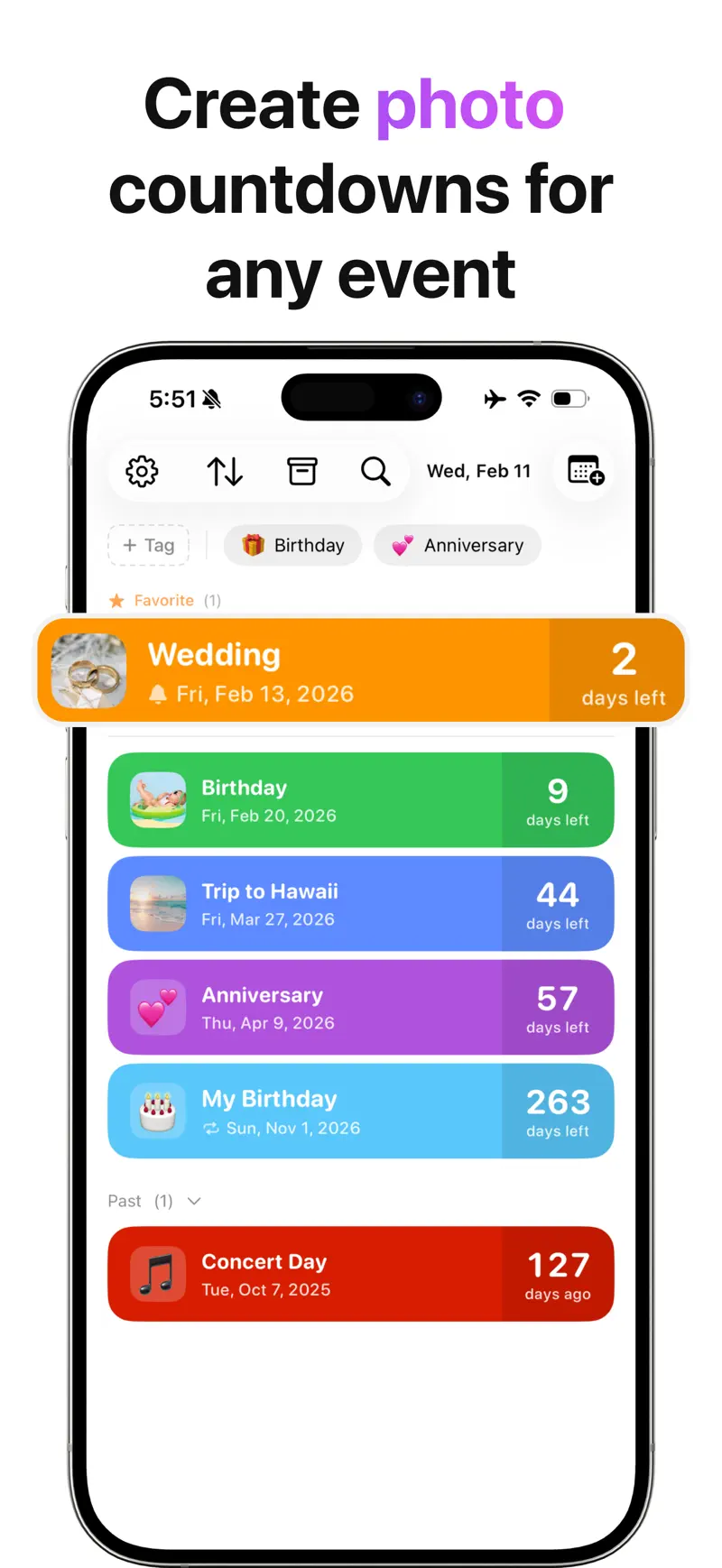
The free event list supports unlimited countdowns, upcoming and past events, days-left and days-since tracking, and customization with an emoji, photo, or color. Tags, search, filters, and groups keep work, family, travel, and personal dates separate.
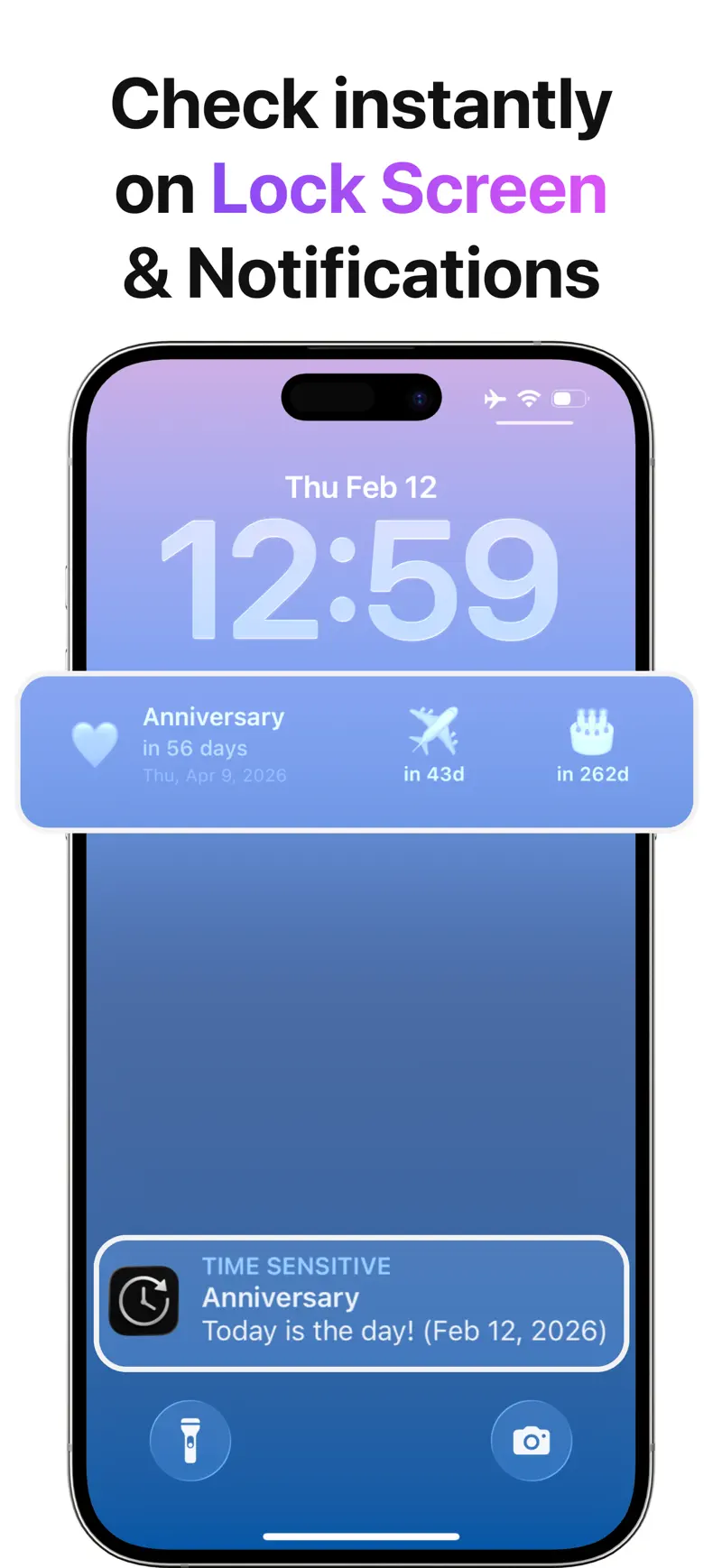
Repeating events are useful for birthdays and annual renewals. Reminders add advance notice, while shareable countdown cards turn an event into an image for friends or colleagues. The app works offline and does not require a separate Rich Soft account.
iCloud sync automatically keeps countdowns current across an iPhone, iPad, and Mac signed in to the same Apple Account. A deadline added on Mac can appear on iPhone, while a date edited on iPhone can stay current in the Mac widget.
Pro adds the features designed for persistent visibility and long-term storage. Its file backup and restore is separate from iCloud device sync:
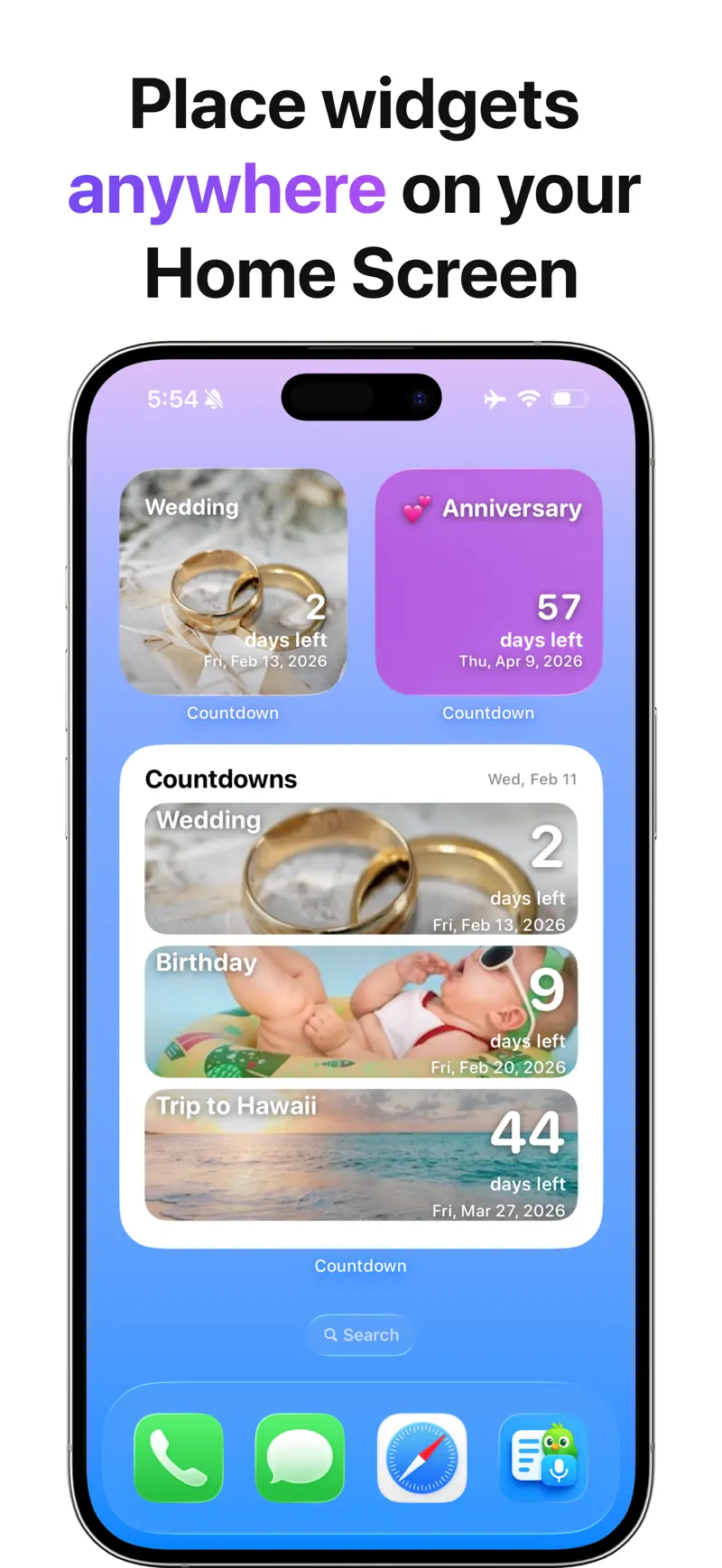
- Single-event and multiple-event desktop widgets
- Detailed time display
- Lunar dates for birthdays and anniversaries
- An archive for past events
- Backup and restore with automatic daily backups
For the same features on a phone, use the Countdown Pro - Widget & Timer iPhone widget guide.
How to set up your first Mac countdown
You can turn a date into a useful desktop countdown in a few minutes:
- Install Countdown Pro - Widget & Timer from the US App Store.
- Open the app and create an event with a clear title and date.
- Choose whether the event should count down to a future date or remain visible as days since a past date.
- Add an emoji, photo, or color that makes it recognizable at a glance.
- Add a reminder only when advance notice will help you take action.
- Add a tag such as Work, Family, Travel, or Goals if you expect the list to grow.
A specific title is easier to scan. “Submit scholarship application” gives you more context than “Deadline,” while “Flight to London” is clearer than “Vacation.”
How to add the countdown widget to your desktop
Desktop widgets are Pro features. To add one:
- Control-click the Mac wallpaper and choose Edit Widgets.
- Search for Countdown Pro - Widget & Timer in the widget browser.
- Choose a widget size and a single- or multiple-event layout.
- Click the widget or drag it to the desktop.
- Place it where it remains visible without covering active work.
Apple's Mac widget guide covers the system controls for adding, moving, resizing, customizing, and removing widgets.
Use a single large widget for the one deadline that deserves daily attention. Use a multiple-event layout for a short sequence such as application, interview, travel, and start dates. Too many widgets can make every date easier to ignore.
What to check if the Mac widget is missing
Try these checks in order:
- Open the app once. Create an event, close the window normally, and search the widget browser again.
- Verify the event. Check its date and whether it is configured as an upcoming, past, or repeating event.
- Remove and re-add the widget. This refreshes its configuration without deleting the event.
- Open the app after updating. Let the latest version load the event database and then return to the desktop.
Widgets provide glanceable information rather than a second-by-second clock. If an event needs an exact alarm, configure a reminder as well.
A practical weekly countdown workflow
Treat the app as a lightweight date dashboard, not a replacement for Calendar or a task manager.
At the start of the week, add new dates from email, school portals, travel confirmations, and renewal notices. Archive events that no longer need attention, then choose one or two dates for the desktop.
During the week, let the widget show distance. When an event becomes actionable, put the next step in Reminders or your normal task system. The countdown answers when and how far; a task list still answers what to do next.
Is this the right Mac countdown app for you?
Countdown Pro - Widget & Timer is a strong fit if you want unlimited events, both future and past tracking, offline use without a separate account, multiple-event desktop widgets, and iCloud sync across iPhone, iPad, and Mac.
See our guide to why Countdown Pro - Widget & Timer stands out to explore the complete experience across devices.
Frequently asked questions
Can Countdown Pro - Widget & Timer show several events on Mac?
Yes. The current App Store description lists both single-event and multiple-event widgets as Pro features.
Can it track time since a past event?
Yes. Upcoming and past events can stay in the same list, and days-since tracking keeps milestones visible after their date passes.
Does the Mac app need an account?
No. The current listing says it works offline without an account.
Can I back up my countdowns?
Yes. Version 2.9.2 added backup and restore for Pro users and creates an automatic backup once a day.
Do countdowns sync with iPhone and iPad?
Yes. iCloud automatically syncs countdowns between a Mac, iPhone, and iPad signed in to the same Apple Account. Pro file backup and restore is a separate feature for keeping and recovering an additional copy.
Keep the dates that matter in sight
Start with one meaningful event and one widget. That is enough to make a distant deadline or anticipated trip visible without turning the desktop into another crowded dashboard.
Download Countdown Pro - Widget & Timer from the US App Store, or review the current app details and official screenshots first.
Get Countdown Pro - Widget & Timer
Use Countdown Pro on Mac for visible desktop widgets and iCloud sync that keeps deadlines and milestones current across Apple devices.
5.0 · 4