iPhone Voice Memo to Text | LoroNote - Speech to Text
Convert an iPhone Voice Memo to text from an M4A file with LoroNote - Speech to Text. Separate speakers and export TXT or SRT.
 LoroNote - Speech to Text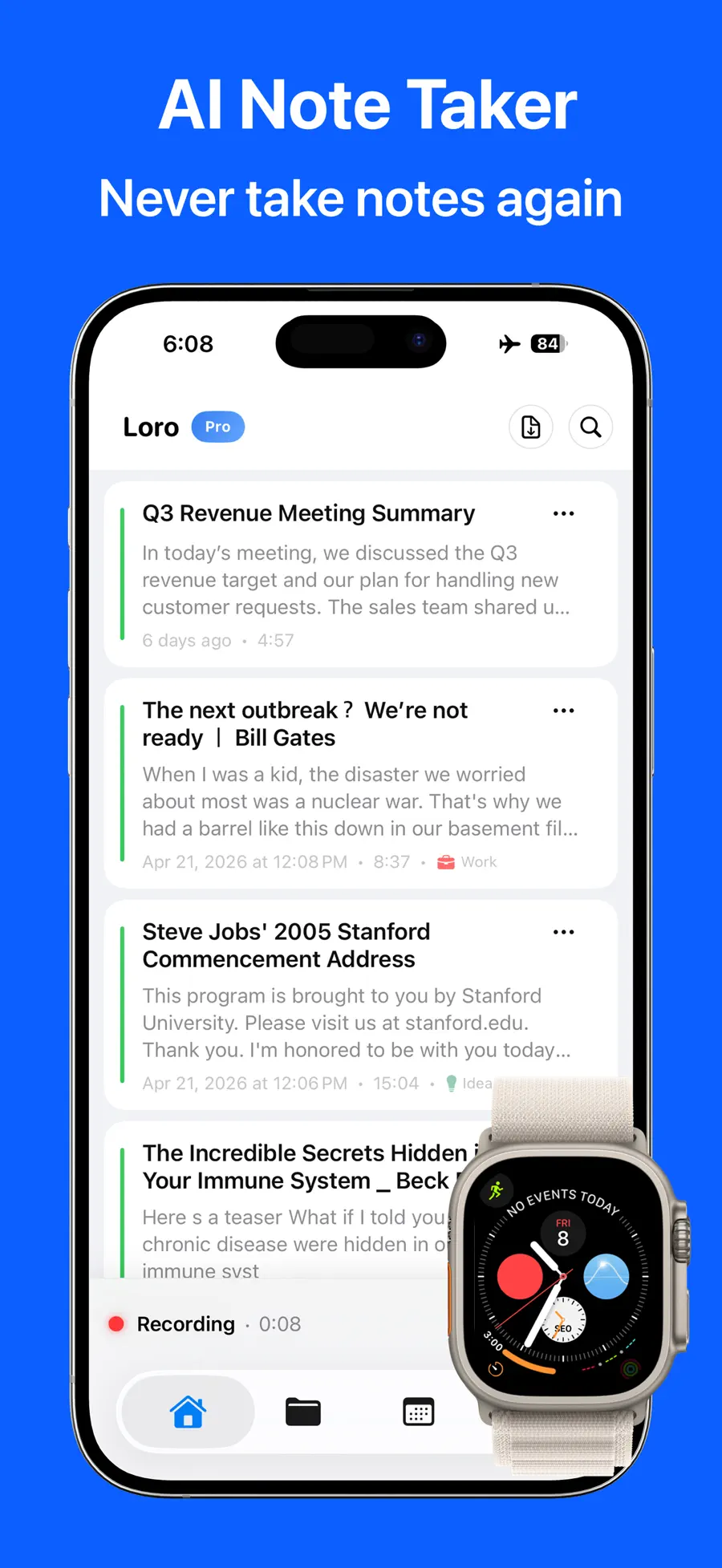
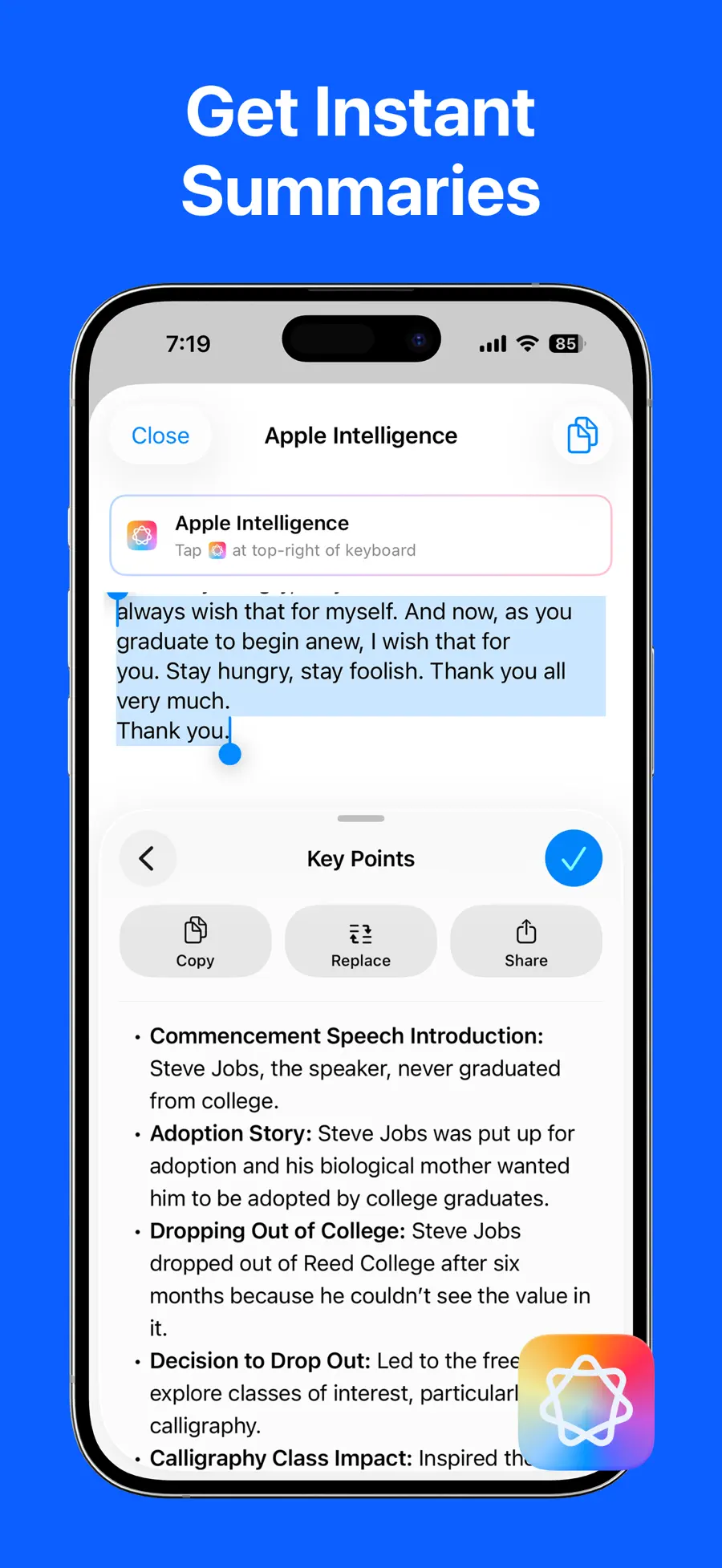
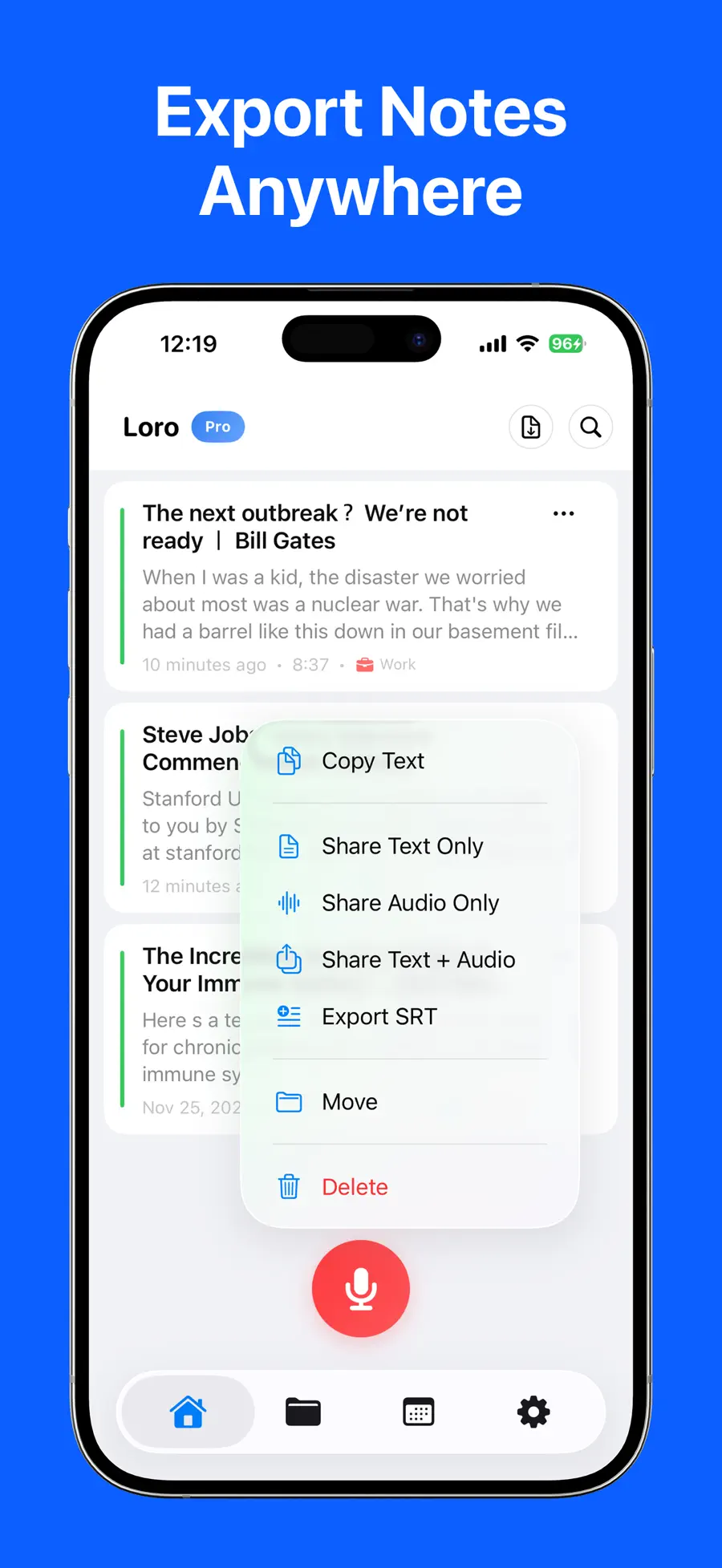
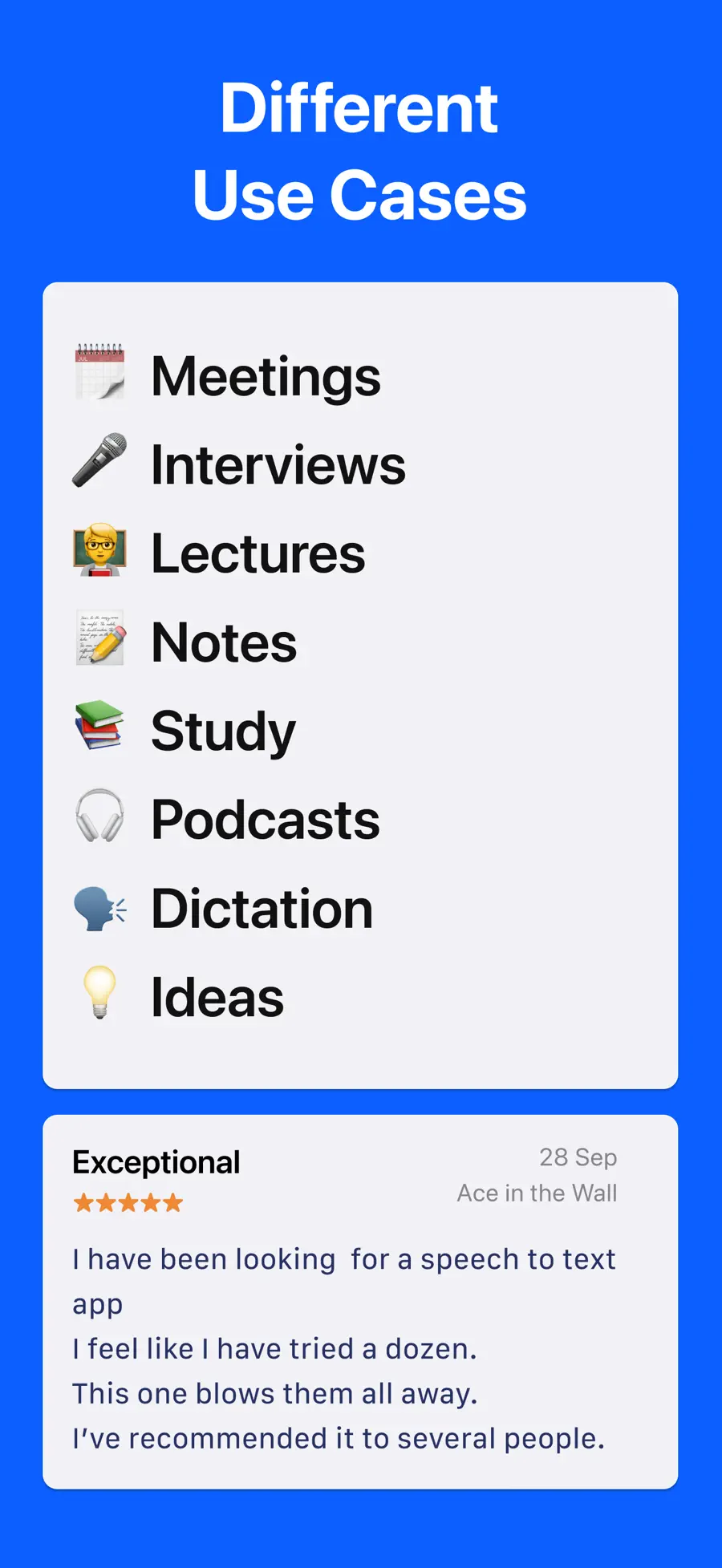
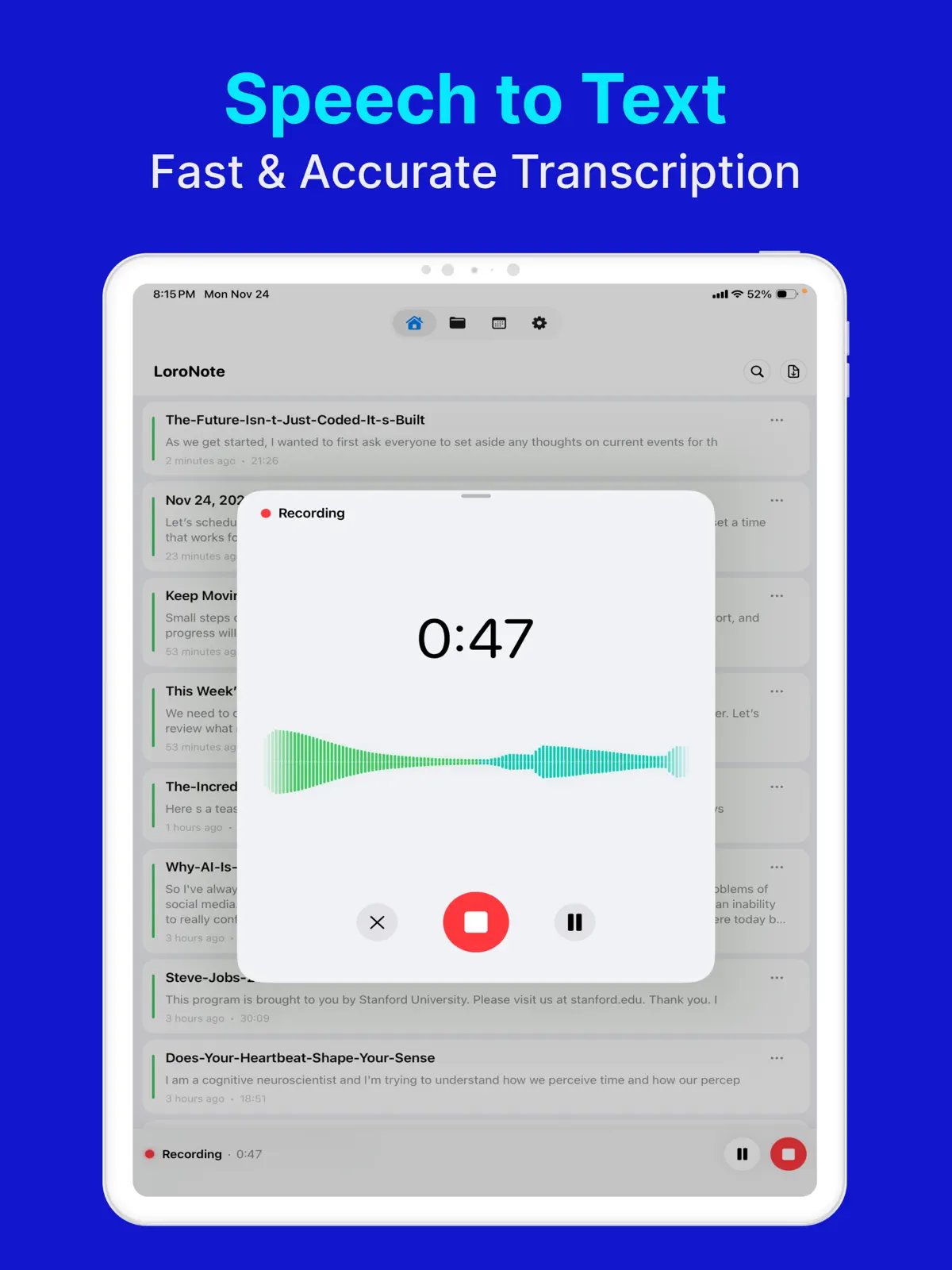
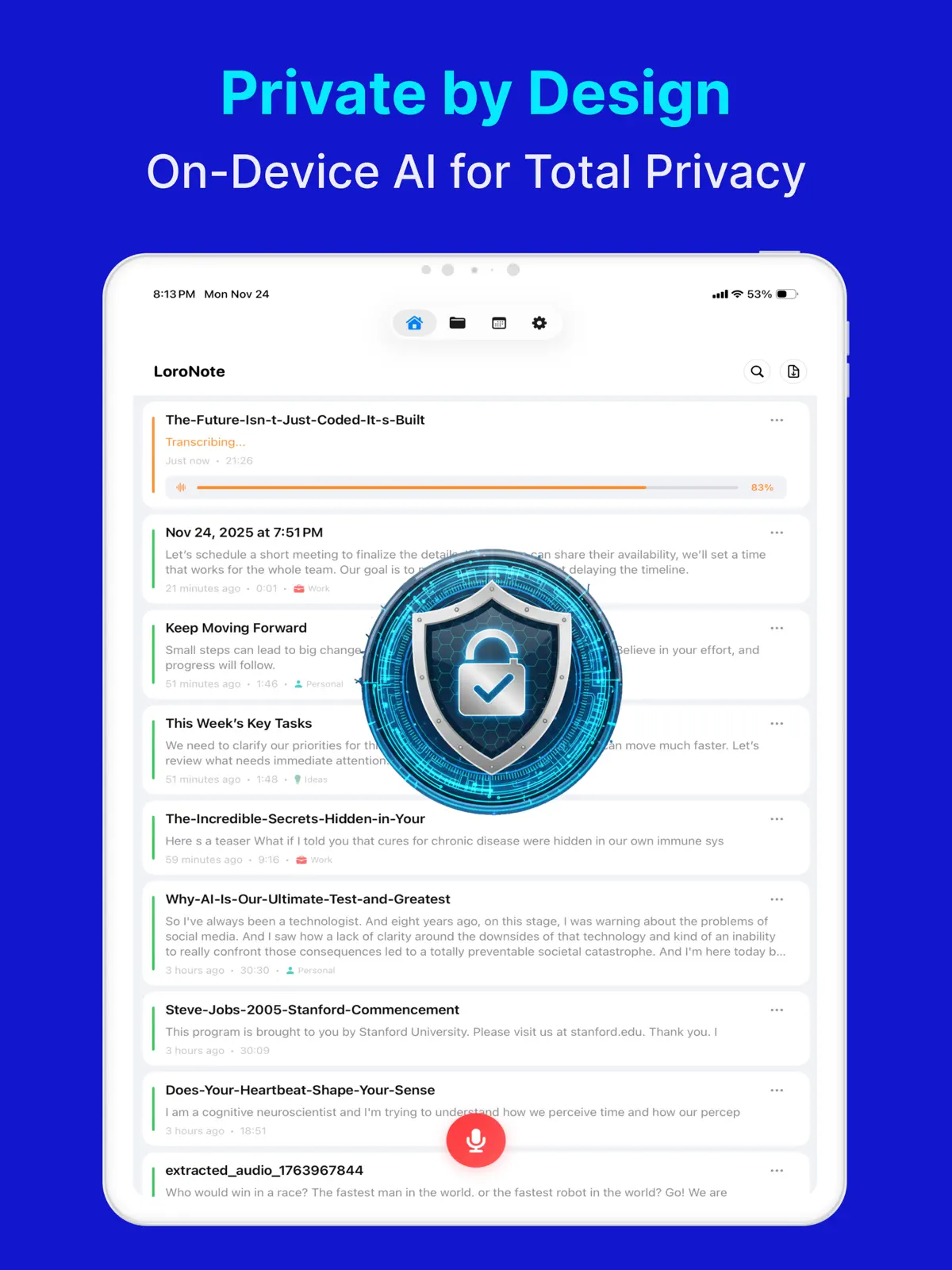
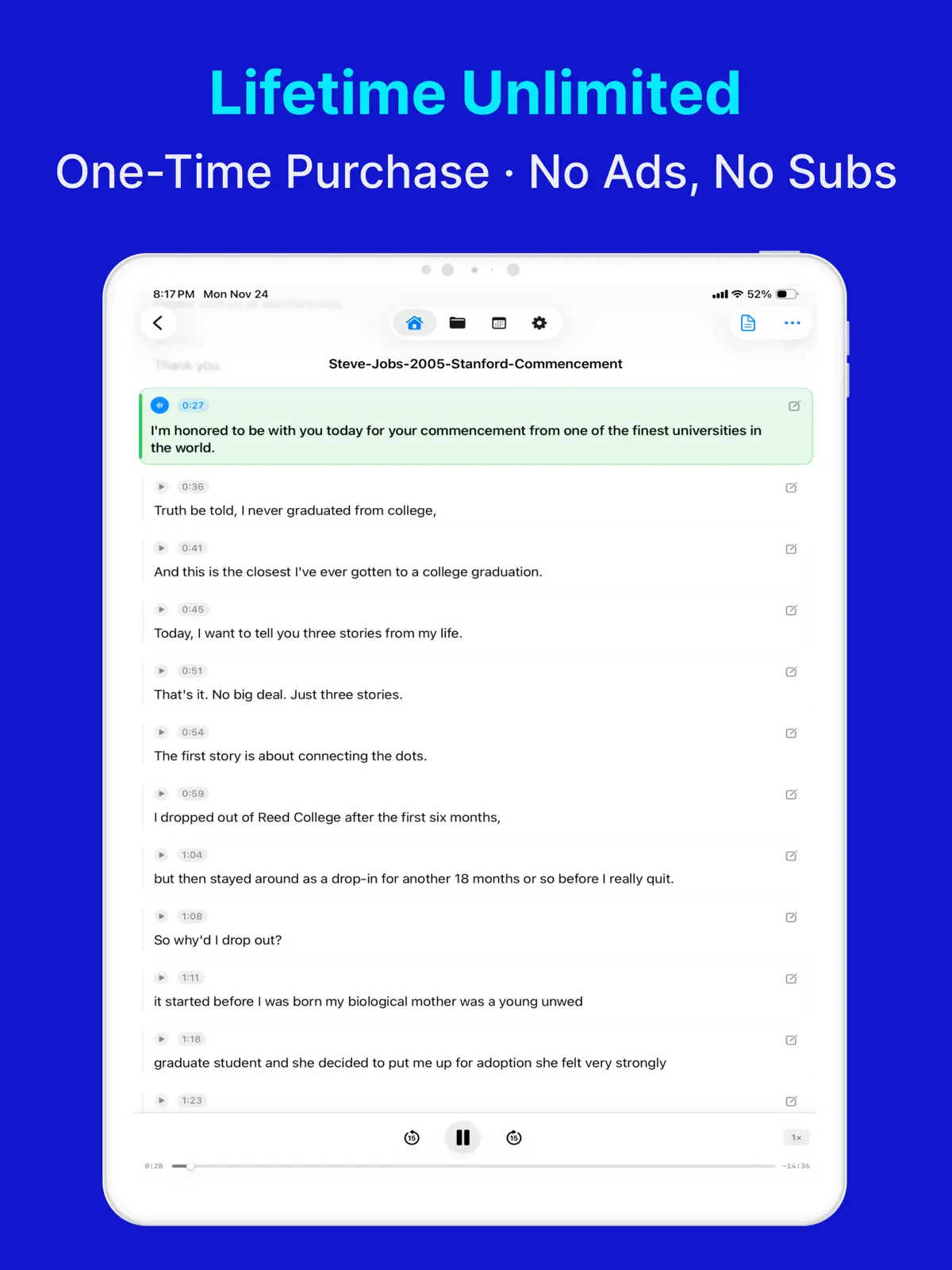
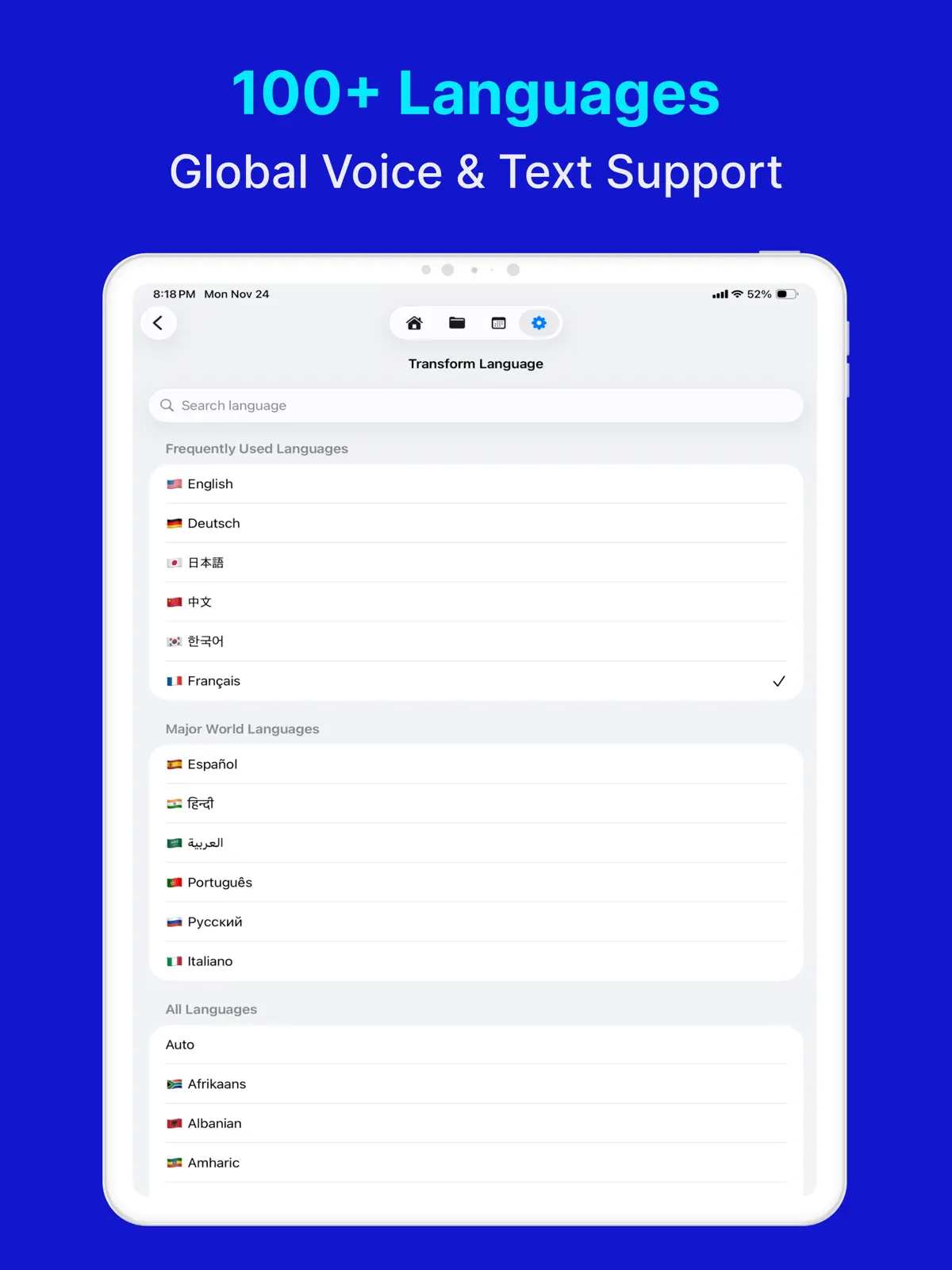
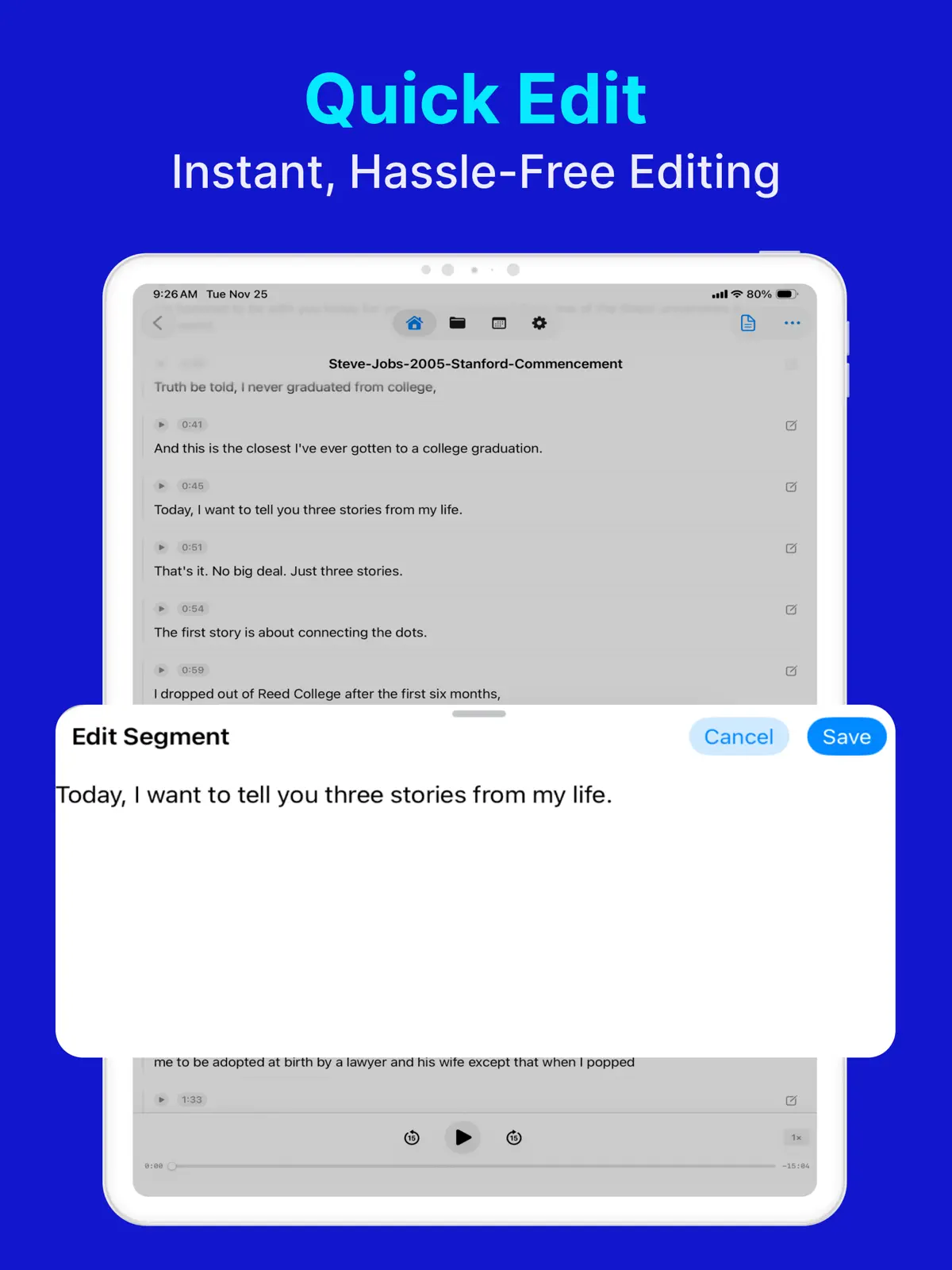
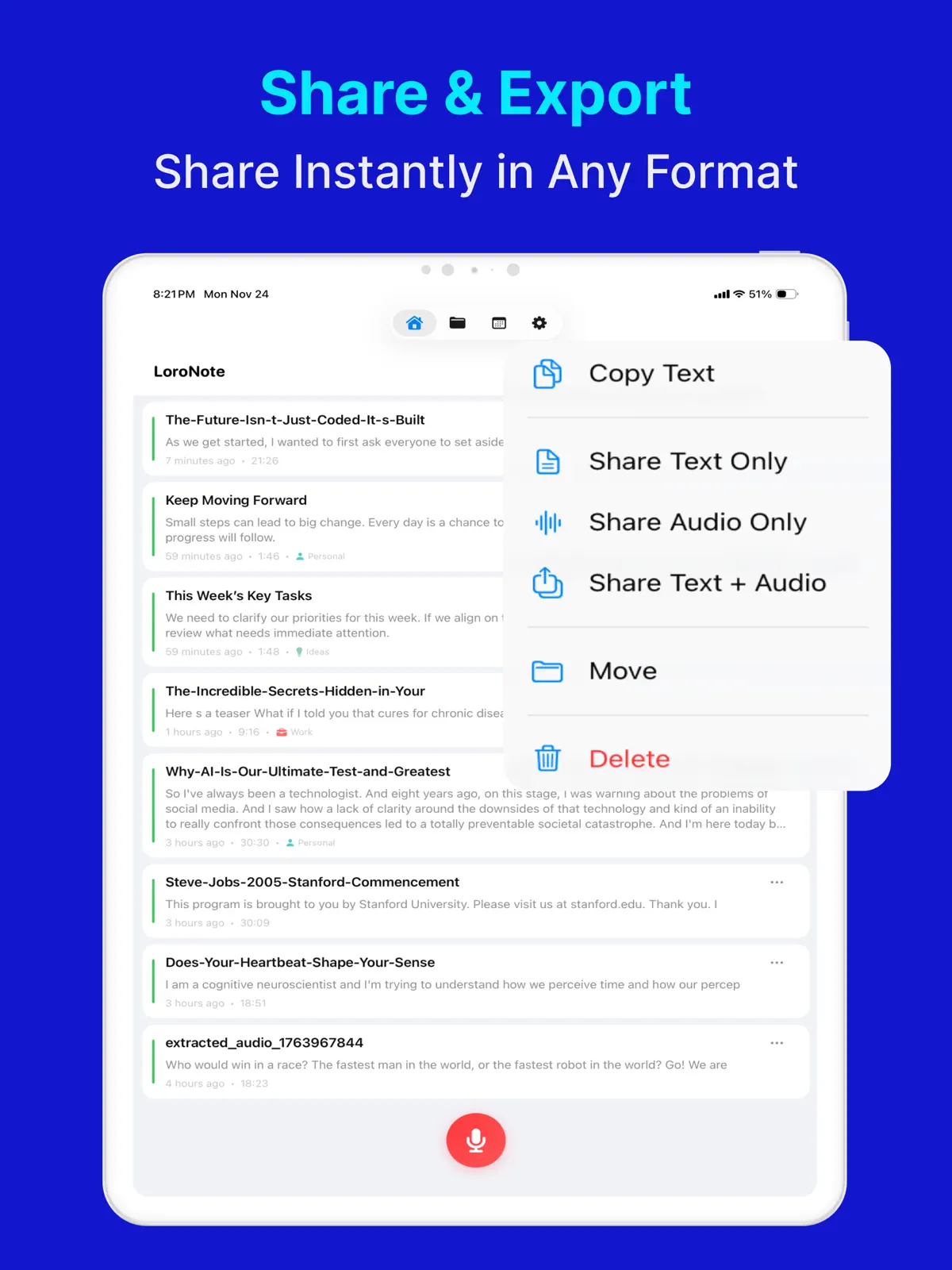

Table of contents+
- Check the built-in Voice Memos transcript first
- 1. Export the Voice Memo as an M4A file
- 2. Import the recording into LoroNote - Speech to Text
- 3. Label speakers and correct recognition errors
- 4. Export as TXT or SRT
- Use cases listed in the App Store
- Frequently asked questions
- Turn one recording into searchable text
Have a meeting, lecture, or interview sitting in Voice Memos but no time to replay it? You do not have to listen from the beginning and type every sentence. Export the recording as an M4A file, import it into a transcription app, and turn it into text you can search, copy, and edit.
Apple says Voice Memos transcription is available on iPhone 12 or later in English, Spanish, Portuguese, Italian, French, German, Japanese, Korean, Simplified Chinese, and Traditional Chinese. Apple also notes that the feature is not available in every country or region. When you need speaker labels, a custom dictionary, synchronized playback, or TXT and SRT export, the current App Store listing for LoroNote - Speech to Text includes those features.
Check the built-in Voice Memos transcript first
On a supported iPhone, select a recording in Voice Memos and open More → View Transcript. You can also copy the full transcript into Mail, Notes, or a document. Apple's Voice Memos transcript guide lists the current device and language requirements.
Start with the built-in transcript unless you need to:
- Separate a conversation by speaker
- Add names, company terms, or technical vocabulary to a custom dictionary
- Listen while reading with synchronized text highlighting
- Save the result as TXT or subtitle-ready SRT
- Process MP3, WAV, M4A, MP4, and MOV files in one app
For meeting minutes, interview copy, or video subtitles that need editing and export, follow the steps below.
1. Export the Voice Memo as an M4A file
Voice Memos exports a standard recording to Files as an M4A file.
- Open Voice Memos on your iPhone.
- Select the recording you want to transcribe.
- Tap More (···) → Share.
- Scroll down and choose Save to Files.
- Pick a folder and tap Save.
If you used layered recording or editing effects, review the export options in the share sheet first. For a standard recording, the default settings create the M4A file needed for transcription. See Apple's current instructions for exporting a Voice Memo to Files for more detail.
2. Import the recording into LoroNote - Speech to Text
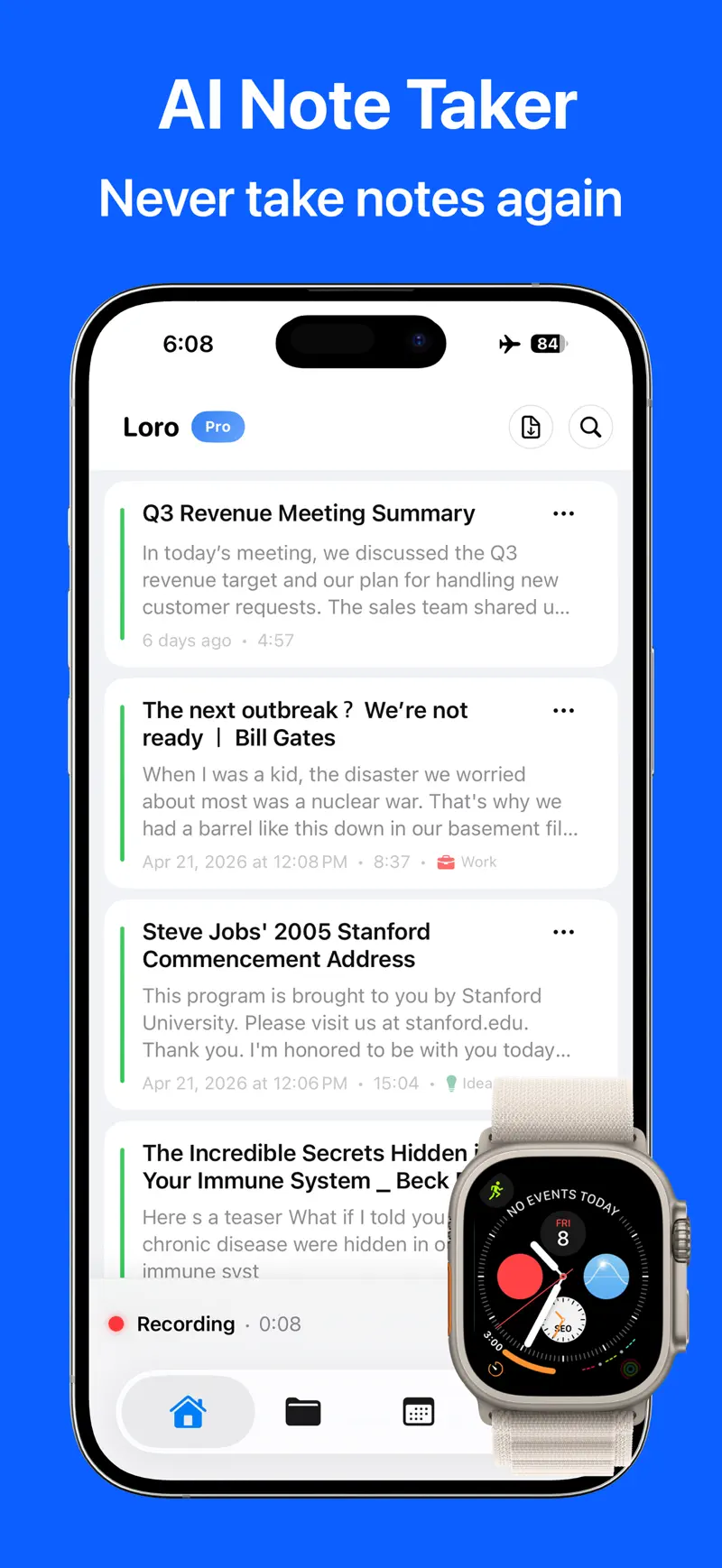
Download LoroNote - Speech to Text from the App Store, open it, and select the M4A recording you just saved from the audio or video import screen.
The current US App Store listing says the app supports MP3, WAV, M4A, MP4, and MOV. That means the same process also works for lectures, interview audio, and video files stored in Files.
After you choose a file, Whisper Large V3 Turbo processes the speech on your iPhone. The audio and transcript are not uploaded to an external transcription server, and transcription works without an internet connection. For a long recording, leave the app open until processing finishes.
3. Label speakers and correct recognition errors
A meeting or interview can contain more than one voice. The App Store listing says speaker identification shows who is speaking, lets you rename speakers, and includes speaker labels when a transcript is shared.
During review, you can listen to the original audio while editing the transcript. The App Store listing says the text is highlighted in sync with playback.
The custom dictionary accepts names, technical jargon, and acronyms.
4. Export as TXT or SRT
The current App Store listing describes these output and playback options.
| Option | Listed function | Listed destination or behavior |
|---|---|---|
| TXT | Save the transcript as text | Share to Notes, Files, or another app |
| SRT | Save the transcript as subtitles | Export a subtitle file |
| In-app playback | Play the original audio | Read with synchronized text highlighting |
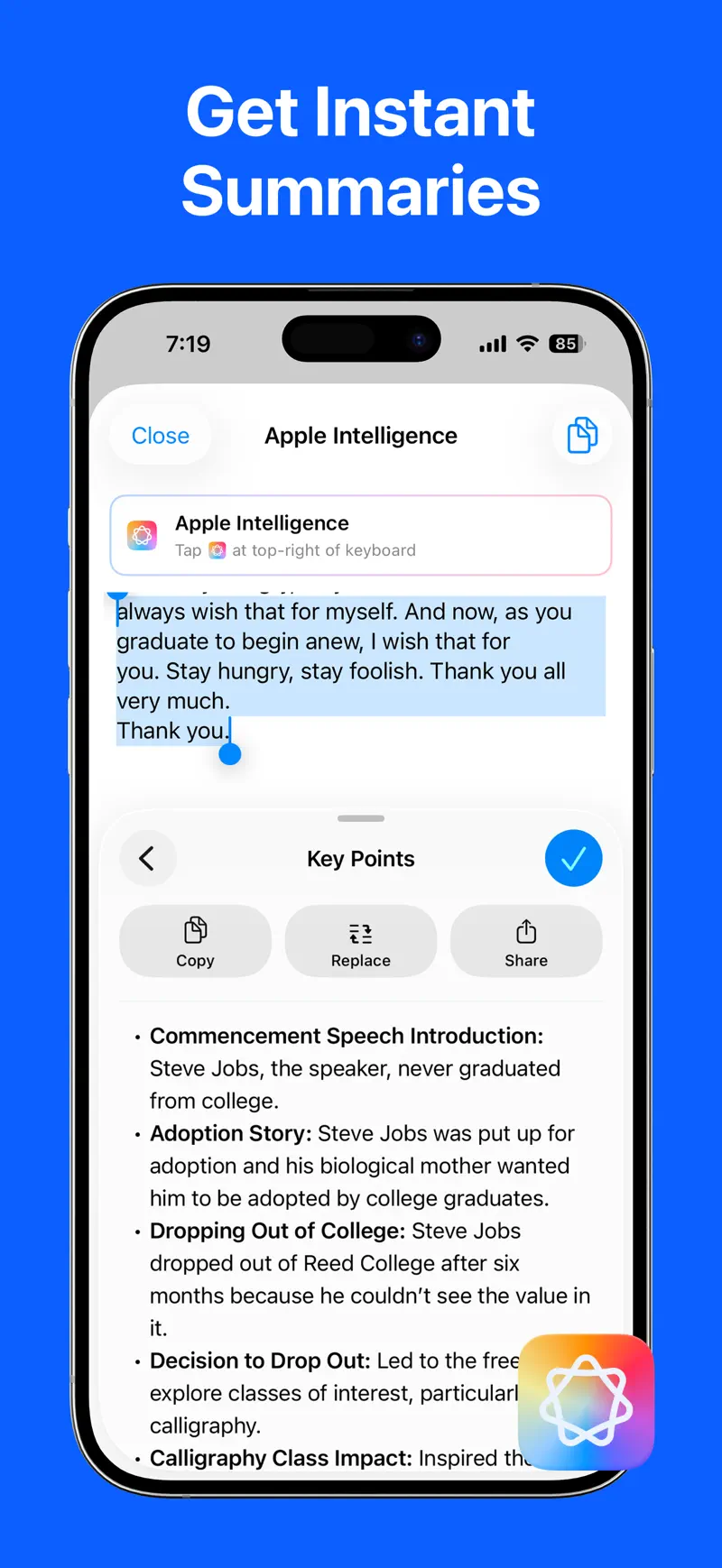
The App Store listing says Apple Intelligence integration can summarize meetings, extract action items, and refine notes on supported devices.
Use cases listed in the App Store
The App Store listing describes the following uses for transcription and export features.
- Record business meetings
- Transcribe lectures for review and search
- Record interviews and create searchable text
- Create SRT subtitles for videos
Voice Memos provides a built-in transcript under Apple's device, language, and region conditions. LoroNote - Speech to Text additionally lists file import, speaker identification, transcript editing, and export features.
For a broader workflow covering meetings and video files, read our complete iPhone voice-to-text guide. You can also learn why on-device processing matters.
Frequently asked questions
Can Voice Memos convert audio to text by itself?
Yes. Apple says the feature requires iPhone 12 or later, supports the languages listed above, and is not available in every country or region.
What file format does Voice Memos export?
The standard export is M4A. Choose Share and Save to Files in Voice Memos. Layered or editable recordings may offer additional export behavior in the share options.
Does transcription require an internet connection?
The current App Store listing says speech transcription runs on the device and works without an internet connection.
Does it work on every iPhone?
Device and iOS requirements can change. Check the latest compatibility section on the LoroNote - Speech to Text App Store listing before downloading.
Turn one recording into searchable text
Start with one recording from Voice Memos. Export it to Files, import the M4A, and use synchronized playback to review the transcript while listening to the original audio.
Download LoroNote - Speech to Text from the App Store and transcribe your first Voice Memo. You can also review its full feature list and official screenshots before installing.
Get LoroNote - Speech to Text
Convert an iPhone Voice Memo to text from an M4A file with LoroNote - Speech to Text. Separate speakers and export TXT or SRT.
4.7 · 299

 Local TTS - AI Voice Reader
 Export Contacts to Excel & CSV