Text to Speech on iPhone: How to Have Anything Read Aloud
Turn articles, PDFs, EPUBs, and notes into natural speech on iPhone. Compare the built-in Spoken Content feature with a private, offline TTS reader app.
 Local TTS - AI Voice Reader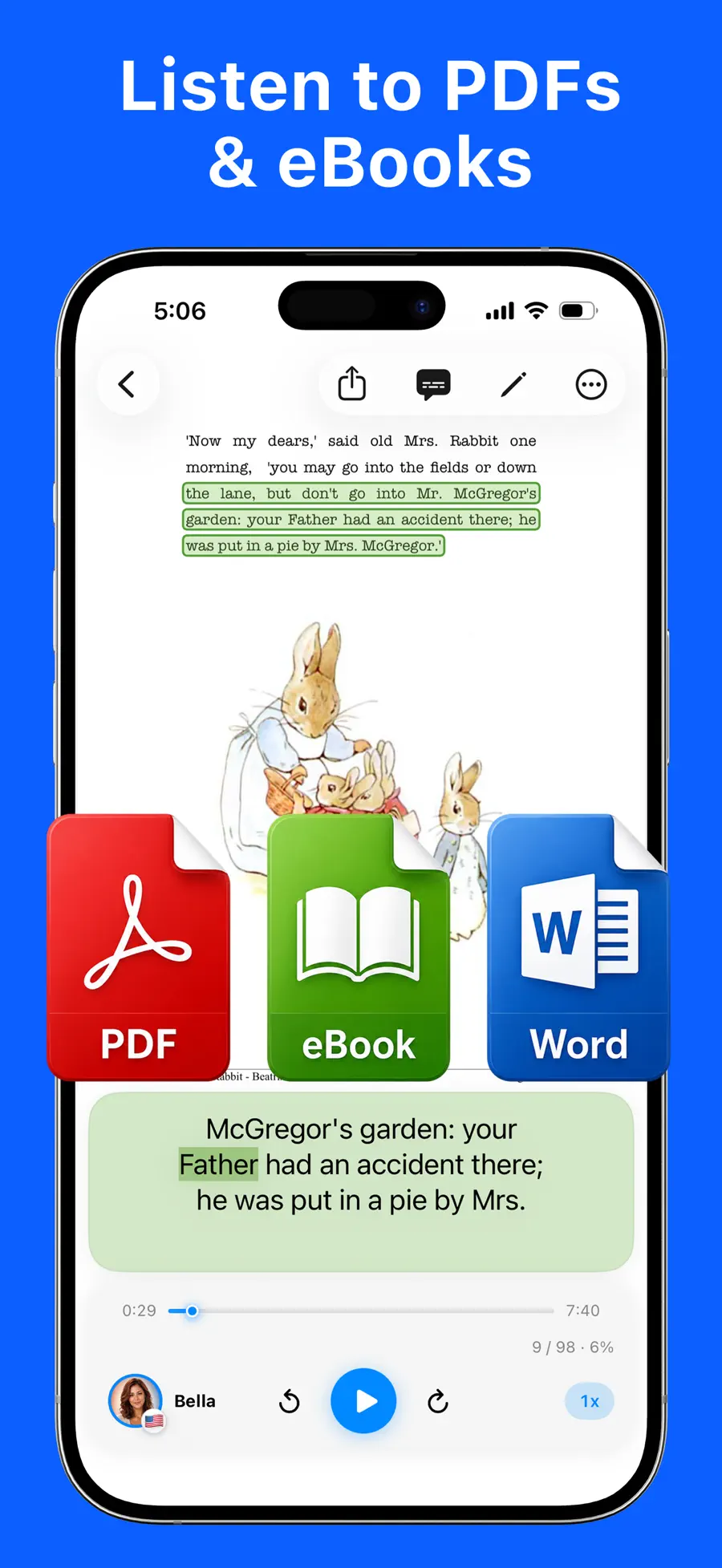

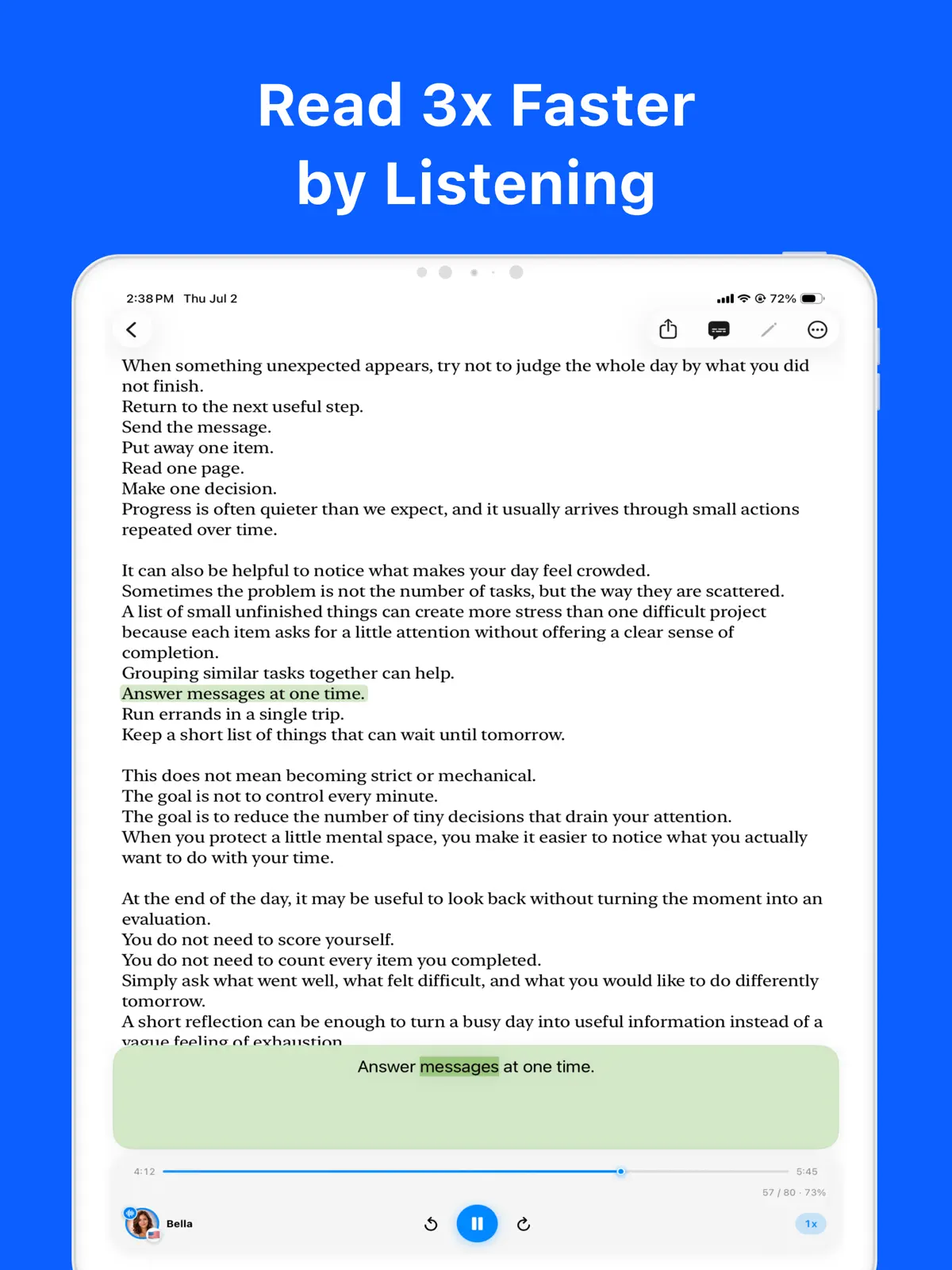
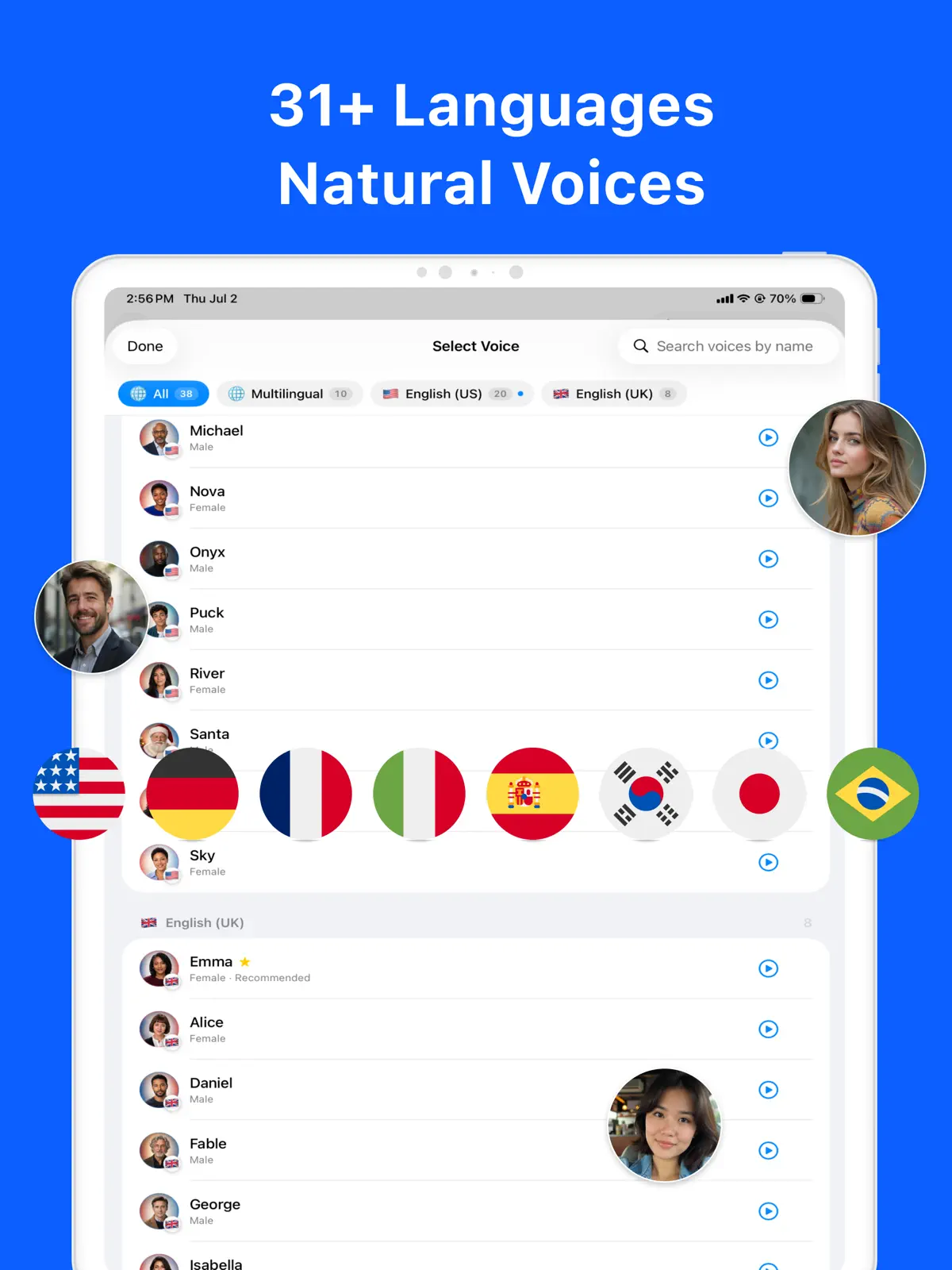
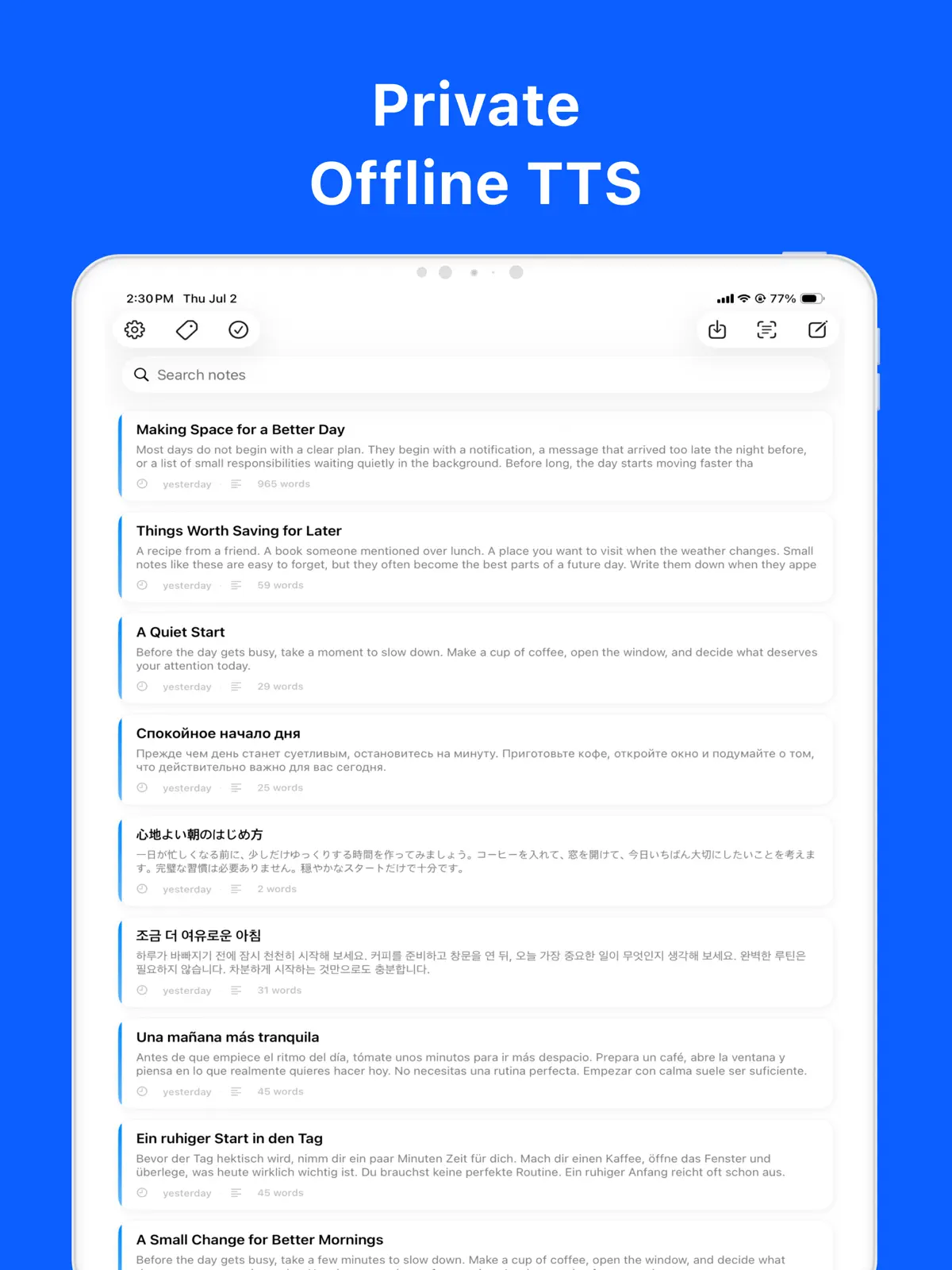
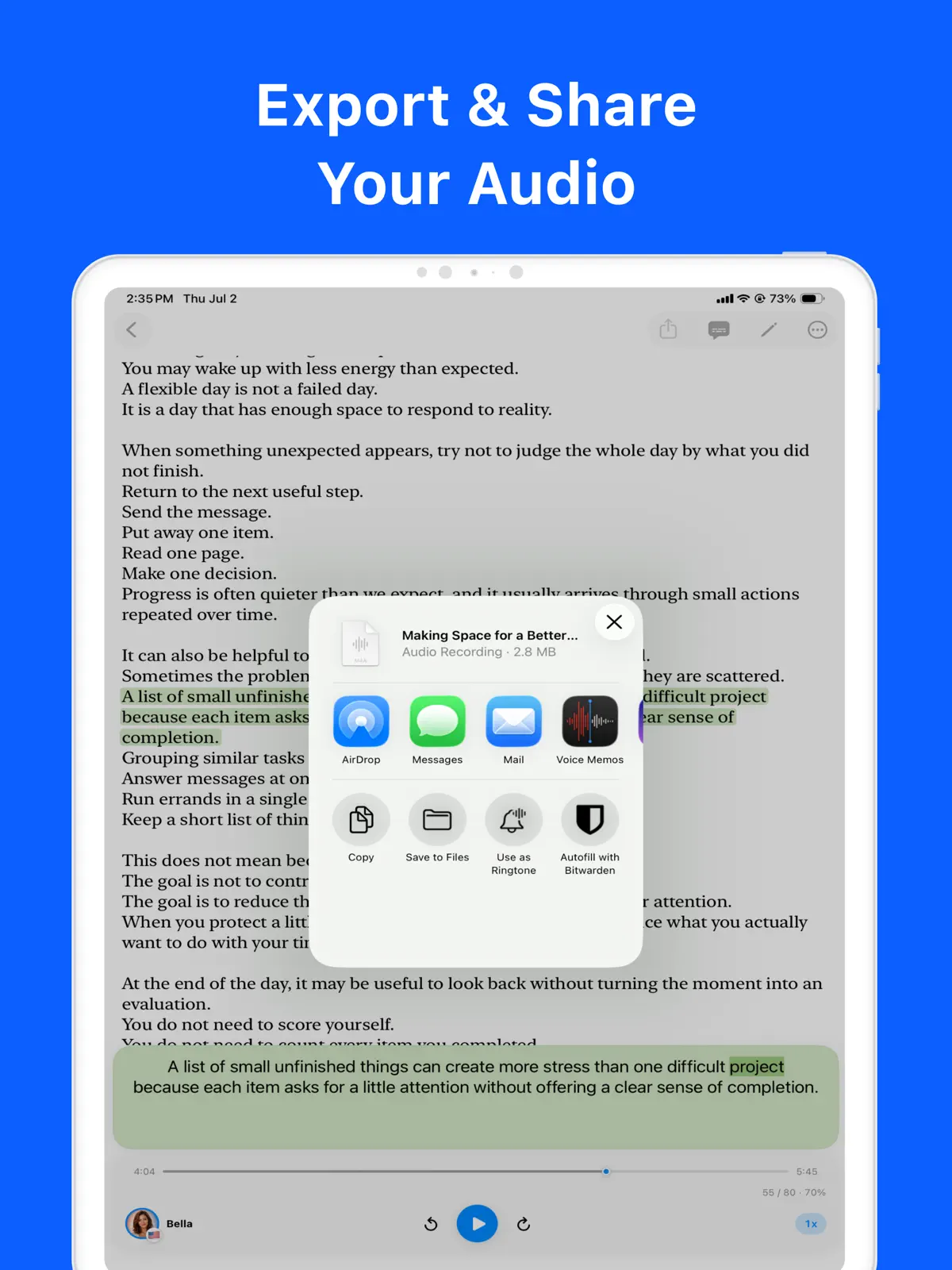
Some text is easier to listen to than to read: a long article on a commute, a PDF while cooking, study notes on a walk. Your iPhone can already speak text out loud — but if you have tried the built-in option, you know it works best for a quick paragraph, not for building a listening habit around documents and articles.
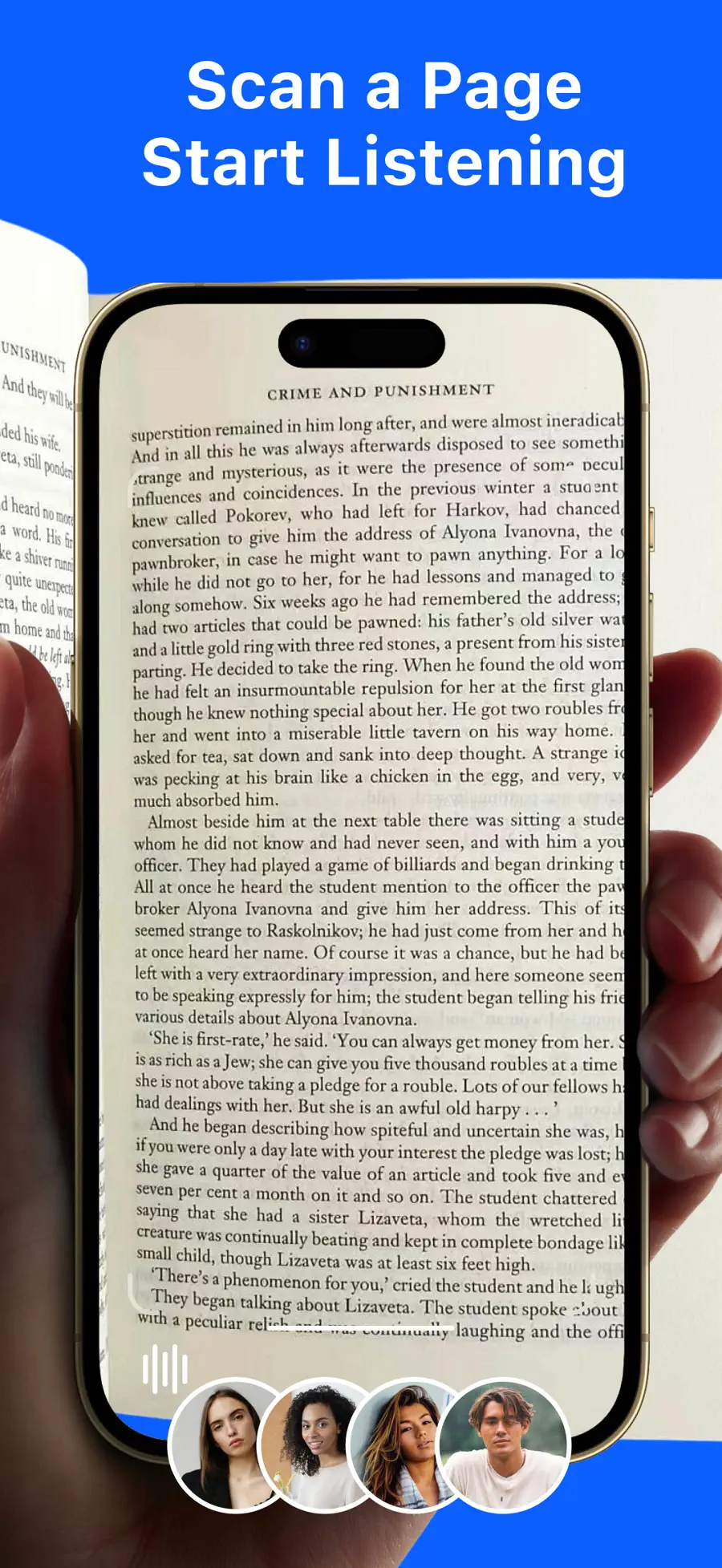
Local TTS - AI Voice Reader turns almost anything into lifelike speech, entirely on your device. Paste an article, import a PDF, EPUB, Word, text, or Markdown file, scan a printed page with the camera, or type a quick note — then listen with high-quality neural voices. Nothing is uploaded, and nothing leaves your iPhone.
The built-in way: Spoken Content
iOS includes a free text-to-speech feature worth knowing. Open Settings → Accessibility → Spoken Content, enable Speak Selection and Speak Screen, and you can have selected text or a whole screen read aloud — swipe down with two fingers from the top of the screen to start.
For occasional use it is genuinely useful. Its limits appear when listening becomes a routine: there is no library that keeps your articles and files in one place, no reliable way to import an EPUB or a multi-page PDF, and no reading screen that follows along word by word. Each session starts from whatever happens to be on screen.
A reader built around listening
A dedicated TTS reader treats speech as the main event rather than an accessibility shortcut:
- Read from almost anything. Paste text, type notes, or import PDF, EPUB, Word (DOCX), TXT, and Markdown files. On-device OCR reads text from a photo or a scanned printed page.
- Follow along visually. Word-by-word highlighting stays synced with the audio — helpful for proofreading your own writing and for language learners.
- Listen in the background. Playback continues with the screen locked, with controls on the Lock Screen and in Control Center.
- Stay organized. Give each note its own voice, add tags, and sync your library across iPhone and iPad with iCloud.
- Keep everything private. The neural voices run 100% offline on your device. No accounts, no ads, no tracking — your documents never touch a server.
One voice, 31 languages
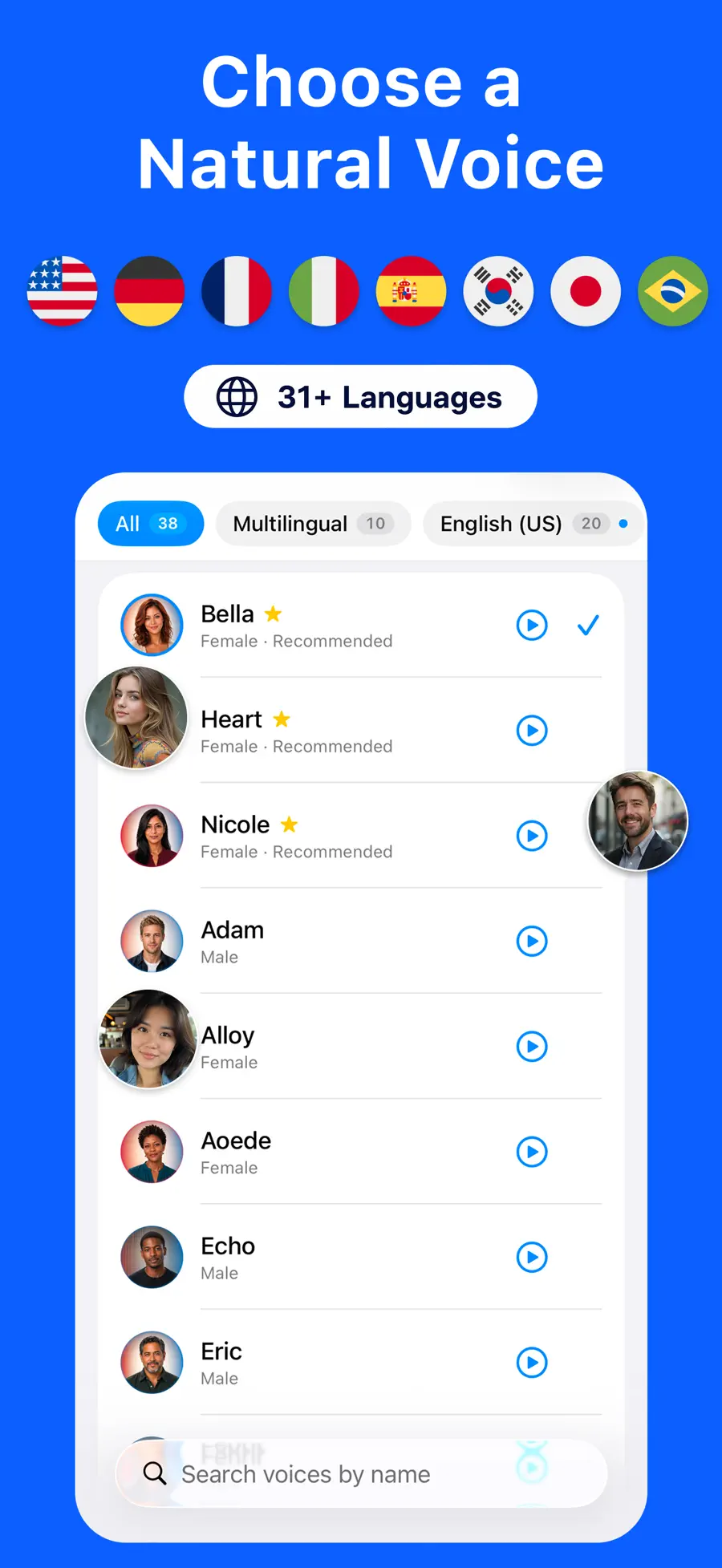
The app reads 31 languages, and the free plan includes a natural multilingual voice that handles all of them plus three premium English neural voices. That covers English, Spanish, French, German, Italian, Portuguese, Japanese, Korean, Arabic, Hindi, Turkish, Vietnamese, and more — useful for language study or for reading in whatever language your documents arrive.
Because speech is generated on the device itself, on-device neural voices need a recent chip: the app requires an iPhone 12 or later (or a recent iPad) running iOS 18.6 or later.
Free plan and Pro
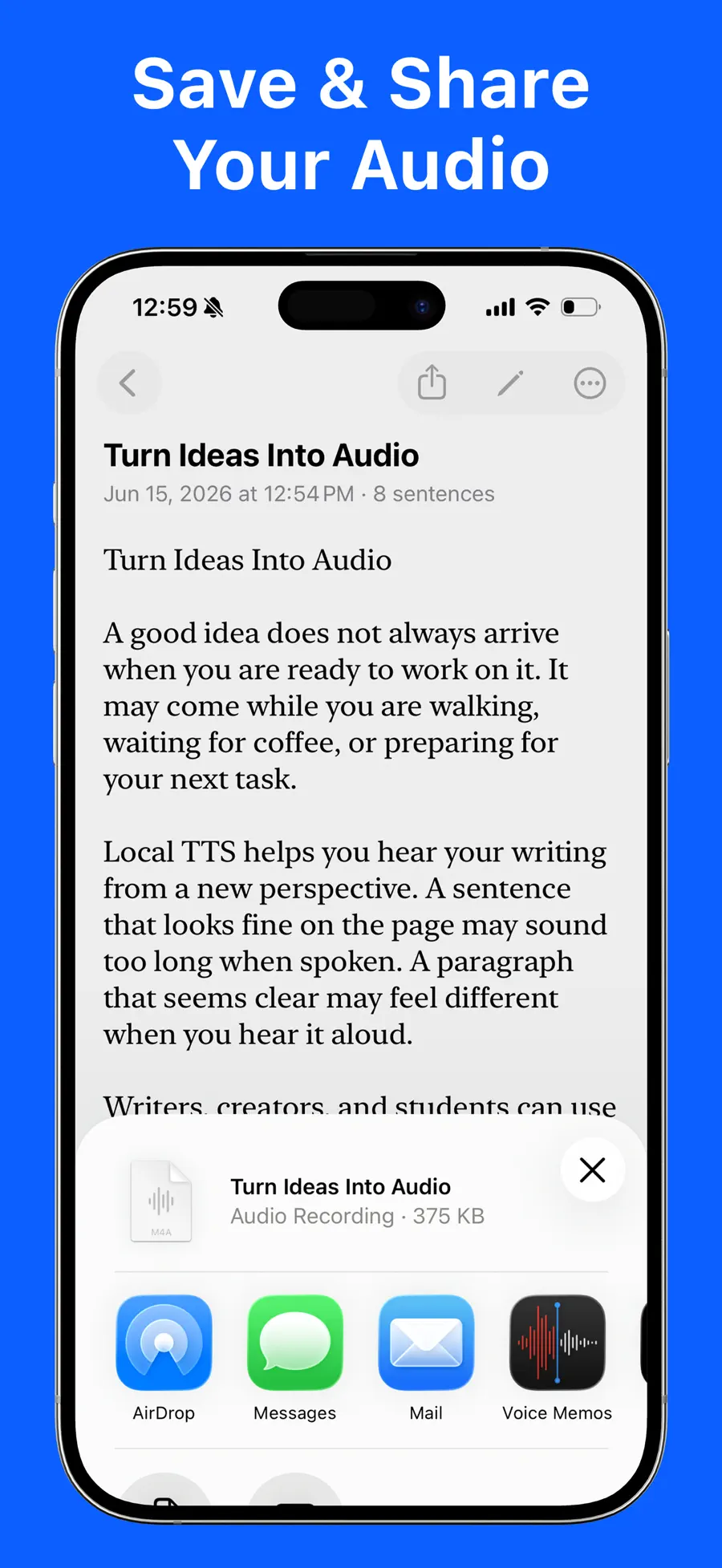
The free plan is a real starting point: the multilingual voice, three premium English voices, and notes up to 500 characters. Pro removes the character cap, unlocks the full voice catalog, enables full multi-page PDF import, and adds M4A audio export so a document can become a file you play anywhere — even on devices without the app.
A sensible path is to start free with shorter notes and articles, then upgrade when you find yourself importing whole documents or exporting audio.
Who is this text-to-speech app for?
Local TTS - AI Voice Reader fits best if you want to:
- Listen to articles, PDFs, EPUBs, and notes instead of reading them on screen
- Keep a library of things to listen to, rather than speaking one selection at a time
- Follow text with synced word highlighting while it is read
- Read documents in multiple languages with one app
- Keep every document on your device, with nothing uploaded
If you only need a sentence spoken occasionally, the built-in Spoken Content feature may be enough. And if you mainly want celebrity-style cloud voices and don't mind text being processed on a server, a streaming TTS service is a different trade-off — this app's strength is natural speech with complete privacy.
Frequently asked questions
Does it work offline?
Yes. Speech is generated entirely on your iPhone, so it works in Airplane Mode. That is also why nothing you read is ever uploaded.
Can it read PDFs and EPUB books?
Yes. Import PDF, EPUB, Word (DOCX), TXT, and Markdown files. The free plan reads up to 500 characters per note; Pro removes the cap and adds full multi-page PDF import.
Which iPhones are supported?
On-device neural speech needs a recent chip: iPhone 12 or later, or a recent iPad, on iOS/iPadOS 18.6 or later.
Turn your reading list into a listening list
The fastest way to see whether listening fits your routine is to try it with something real: paste the article you have been meaning to read and press play.
Review the features and screenshots for Local TTS - AI Voice Reader before installing, or use the download button on this page to start now.
Get Local TTS - AI Voice Reader
Turn articles, PDFs, EPUBs, and notes into natural speech on iPhone. Compare the built-in Spoken Content feature with a private, offline TTS reader app.
4.3 · 45

 LoroNote - Speech to Text
 Export Contacts to Excel & CSV

 Countdown Pro - Widget & Timer